I can rate the photos I took for the Decisive Moment photo challenge.
I can upload the final three images to my visual journal
I can turn in the final three images. One image being correctly edited in lightroom and photoshop
I can get caught up turning in DSLR quiz, DSLR scavenger hunt, Alphabet project, etc.
Steps:

1. Transfer the photos you shot for thePhoto Challenge, The Decisive Moment.
2.Strong shows you how to rate your photos for this assignment. Use the rating system to select three final photos.
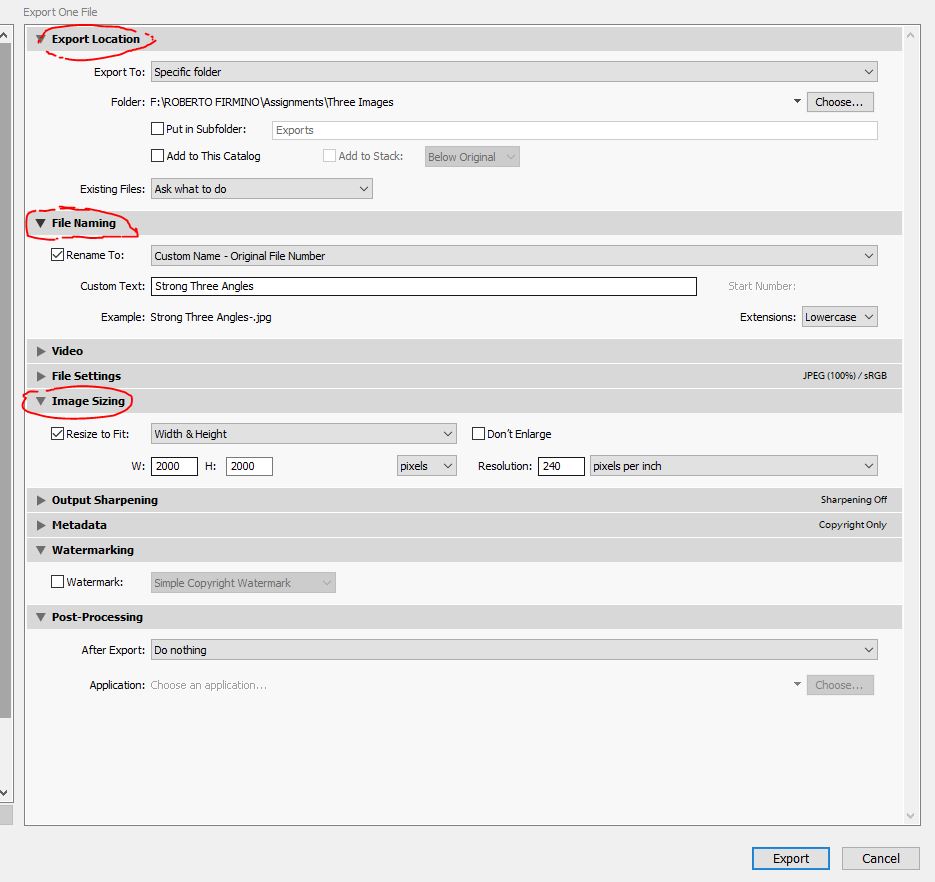
3. Turn in the photo you made yesterday for the Three Photos, One Edit. assignment. Export Settings have been added.
4 . Strong goes over how to export your final photos for  Photo Challenge, The Decisive Moment. - THREE FINAL PHOTOS DUE TODAY BEFORE THE END OF THE PERIOD.
5. Catch up on DSLR Scavenger Hunt & Quiz. Alphabet Photos, and Three Photos One Edit Both in Google Classroom and need to be turned in.

Next Step:
Tomorrow we will write a reflection on the decisive moment.
I can rate the photos I took for the Decisive Moment photo challenge.
I can edit my three pictures of the same subject from different angles into one document in Lightroom and Photoshop.
Steps:

1. Transfer the photos you shot for thePhoto Challenge, The Decisive Moment.
2.Strong shows you how to rate your photos for this assignment. Use the rating system to select three final photos.
3. Strong shows you how to combine the images for Three Photos, One Edit. into one Photoshop document.
4. Strong goes over how to export your final photos for  Photo Challenge, The Decisive Moment. - THREE FINAL PHOTOS DUE TOMORROW BEFORE THE END OF THE PERIOD.
5. Catch up on DSLR Scavenger Hunt & Quiz. Both in Google Classroom and need to be turned in.

Next Step:
Turn in Photos into Google Classroom.
I understand the requirements for the Decisive Moment photo challenge.
I can take three pictures of the same subject from different angles.
I can load these images into Lightroom.
I know how to perform basic edits and organize photos in Lightroom.
Steps:

1. Today's Activity: Three Photos, One Edit.
2. We will watch a couple of videos on how to organize and edit photos in Adobe Lightroom.
3. Strong goes over the first Photo Challenge, The Decisive Moment. - SHOOT THESE THIS WEEKEND WITH YOUR PHONE.

Next Step:
Edit photos for the Decisive Moment Photo Challenge.
For today’s activity we will be setting up our computer to work with Adobe Photoshop and Adobe Lightroom. By the end of the period you will have a set up where you will be able to edit each photo you take.
REMEMBER: You will need to repeat this step EACH TIME YOU MOVE SEATS.
Step 2: Go to the F: Drive of your computer. Right click on the white space and create a folder called “Catalog.” This is where we will be creating our catalog to use in Adobe Lightroom.
Step 3: Open up Adobe Lightroom on your computer by going to the windows sign and choosing Adobe Lightroom from the list or type in “Light” into Cortana at the bottom left of your screen.
You will get an error message that says it cannot create a catalog. Click “Create new Catalog.”
Browse to the Catalog folder under your name on the F: Drive. Type the name “Catalog” into the Name field and click create.
This will create our catalog file.
DO NOT MOVE YOUR CATALOG FILE OR ALL OF YOUR PHOTOS WILL APPEAR TO BE DELETED.
Lightroom will now open.
Step 5: Strong goes over importing and editing photos. Import one of your favorite photos from the alphabet project.
I understand what Bresson meant by the Decisive Moment
I have my Alphabet Project Turned in.
I can, with my group, learn the basic parts of our Canon DSLR cameras.
Steps:

1. Read the post on the Decisive Moment.
2. Write a post on your visual journal about this concept.
   - The website you made last week.
3. With your table mates, work on the DSLR Scavenger Hunt
   - Read the manual as a group and answer the questions.
   - Turn in answers to Google Classroom.
   - Each person turns in their group's answers.
4. We will compete in a Kahoot Gameshow on this.

Next Step:
Google Quiz on these concepts.
I know Bresson means by the “Decisive Moment” and why its important in photography.
I can reflect on the Decisive Moment and Bresson’s photo in my visual journal.
I understand the different parts of the camera my group was assigned to.
Steps:

1. Read the post on the Decisive Moment.
2. Write a post on your visual journal about this concept.
   - The website you made last week.
3. With your table mates, work on the DSLR Scavenger Hunt
   - Read the manual as a group and answer the questions.
   - Turn in answers to Google Classroom.
   - Each person turns in their group's answers.

Next Step:
Kahoot & Google Quiz on these concepts.




 Strong Photography 19-20