How to Rate Your Decisive Moment Photos

Step 1: Convert your HEIC photos to Jpegs.

Step 2: Import all of your Jpegs into Lightroom.
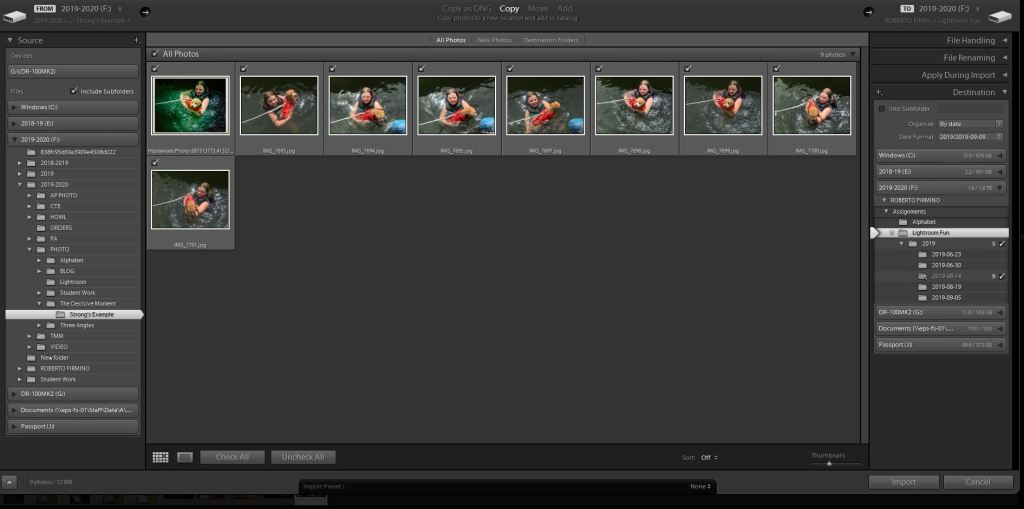
Select the files you want to import and click on ‘Import’

Step 3: In the Library Module rate your photos. You can do this by clicking on each photo, then rate it with the stars that appear on that screen. Use this system to find your three best images from the 10 you took this weekend. Give your best three a rating of 4 or 5 stars. When you are all done rating each photo, the screen will look like this.
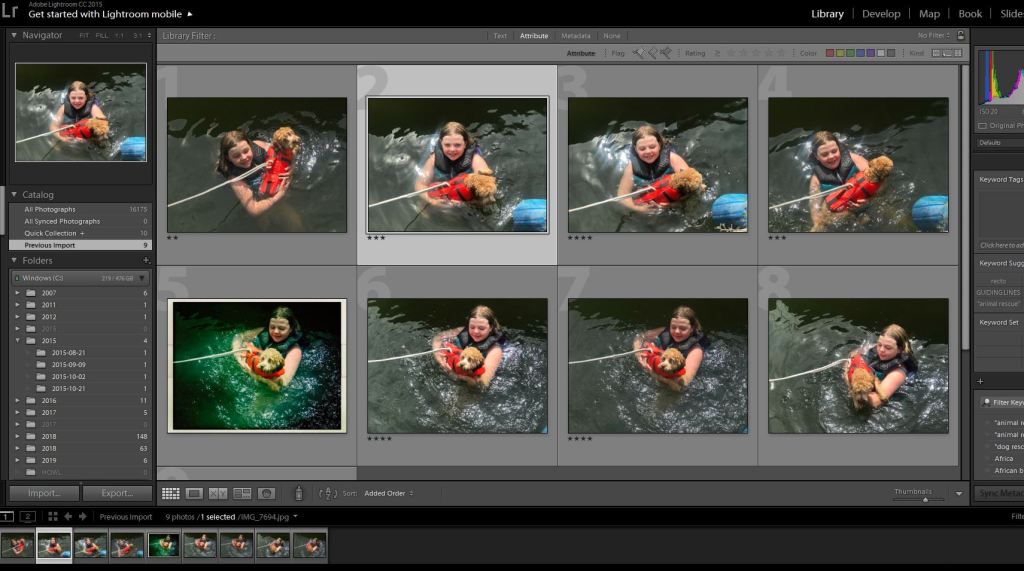
Note how each photo has a rating underneath the image.

Step 4: On the top of the screen click ‘Attribute’ then click the 4 star rating. You will now see three photos
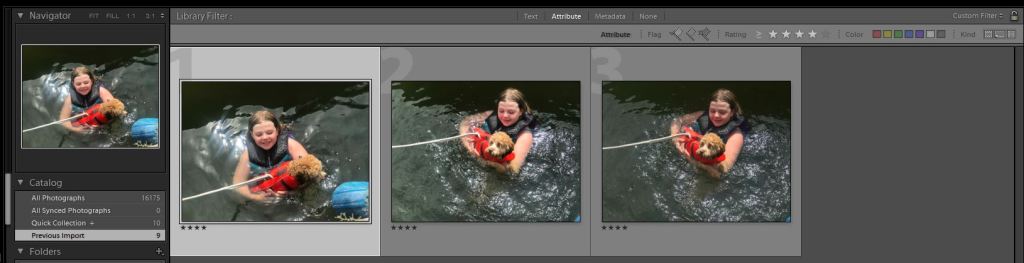
Notice how each photo has a rating of four stars.

These will be the three final photos you upload to your visual journal.

Edit the best picture of these three to get a final version.

Turn in the three final pictures to google classroom and upload it to your visual journal.

Today’s Activity: Combining Your Images into One Image

Today you will be able to combine your three images into one image.

Step 1: Open up lightroom and import the three photos of one object taken at three different angles.

Step 2: Select the images by hitting CTRL+ Click with your keyboard and mouse.

Step 3: Right Click on the three images and select Edit/Open as Layers in Photoshop.

Step 4: Photoshop will open up all three images into one composition.

Step 5: Strong will show you how to rotate and resize the images.

Step 6: When done save in Photoshop and close Photoshop.

Step 7: Strong will show you how to export your photo in Lightroom.

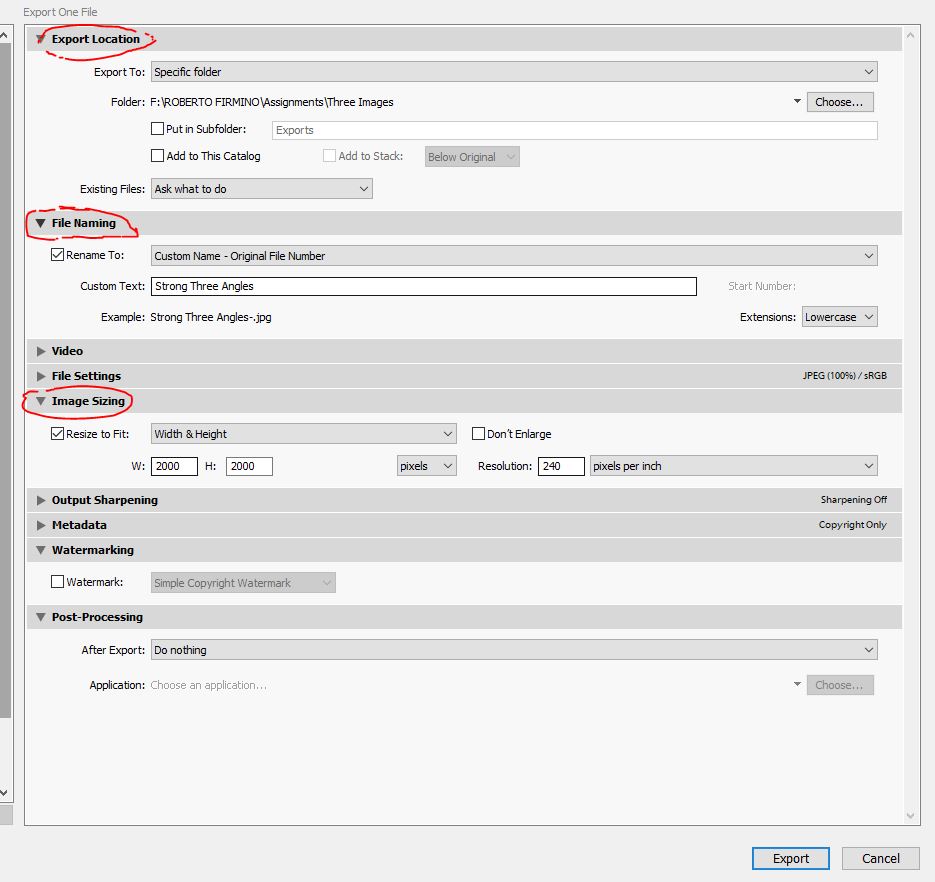
Go to File/Export

Change the settings so that your photo is saved

  1. To your F: Drive.
  2. As your Last Name Angles.jpg
  3. Width of 2000 pixels and Height of 2000 pixels

Then it “Export” + Upload to Google Classroom

To Do List for 9/9

Learning Target:

  • I can rate the photos I took for the Decisive Moment photo challenge.
  • I can edit my three pictures of the same subject from different angles into one document in Lightroom and Photoshop.
Steps:

1. Transfer the photos you shot for thePhoto Challenge, The Decisive Moment.  
2.Strong shows you how to rate your photos for this assignment. Use the rating system to select three final photos.
3. Strong shows you how to combine the images for Three Photos, One Edit. into one Photoshop document.
4. Strong goes over how to export your final photos for  Photo Challenge, The Decisive Moment. - THREE FINAL PHOTOS DUE TOMORROW BEFORE THE END OF THE PERIOD. 
5. Catch up on DSLR Scavenger Hunt & Quiz. Both in Google Classroom and need to be turned in.

Next Step:
Turn in Photos into Google Classroom.
Create your own website, free on WordPress.com.Create your own website.
Start free