
To Do List for 9/12

Learning Target:

  • I can find examples and definitions of all the different composition techniques are.
  • I can demonstrate my knowledge by making photographs that show my mastery of the different composition techniques.

Steps:

1.In Google Classroom, complete the Form Reflecion #1 The Decisive Moment.

2.Read over the requirements for the new assignment: Composition Concepts. Scavenger Hunt.Find examples of each and post them to your visual journals.

3. Catch up on DSLR Scavenger Hunt & Quiz. Alphabet Photos, and Three Photos One Edit Both in Google Classroom and need to be turned in.

Tomorrow:

Make photos for the Composition Concepts assignment.
To Do List for 9/11

Learning Target:

  • I can reflect on the photos I took for the Decisive Moment photo challenge.
  • I can get caught up turning in DSLR quiz, DSLR scavenger hunt, Alphabet project, etc.
  • I know what the different composition techniques are.
Steps:

1.Finish turning in photos for the Photo Challenge, The Decisive Moment.  
2.In Google Classroom, complete the Form Reflecion #1 The Decisive Moment.
3.Read over the requirements for the new assignment: Composition Concepts.
4.Find examples of each and post them to your visual journals.
5. Catch up on DSLR Scavenger Hunt & Quiz. Alphabet Photos, and Three Photos One Edit Both in Google Classroom and need to be turned in.

Next Step:
Tomorrow we will start shooting for the Composition Concepts assignment.
Next Assignment: Composition Scavenger Hunt

Photo Composition Research (visual journal)

In your visual journals, research the following topics, then find a photographic example of each one. Place these examples and sentences into your visual journal.

  1. Rule of Thirds – One sentence and an example
  2. Rule of Even & Odd – One sentence and an example
  3. Triangles – One sentence and an example
  4. Space – One sentence and an example
  5. Simplification – One sentence and an example
  6. Symmetry – One sentence and an example
  7. Pattern & Repetition – One sentence and an example

Find 1 sample photo for each of the composition ‘rules’ online which shows good composition. Post each image to your visual journal. Write 7 complete sentences, (with capitals and periods), one sentence under each photo in the caption section to explain what element of composition each photo represents and why.

Composition Photography Photo Challenge (image-making)

After reading and reviewing photographic composition make a photograph, using a DSLR or smartphone, make a photo that represents each of the most important ‘rules’ or conventions of composition. Place a caption under each photo stating which composition element you are demonstrating PHOTOS MUST BE PHOTOS THAT YOU TOOK INDIVIDUALLY, NOT AS A GROUP.

  1. Rule of Thirds
  2. Rule of Even & Odd
  3. Triangles
  4. Space
  5. Simplification
  6. Symmetry
  7. Pattern & Repetition

Due Date

Photos are due on Tuesday, 9/17

You will turn in:

  1. A link to your visual journal that contains the research, photo examples and your photos for each Composition Element.
  2. The seven Composition photos as .jpgs Name them LastName_NameofComposition_Element.jpg. Change the name depending on which composition element you are demonstrating.

Rubric

What I’ll be grading you on.

  1. Completeness of Research
    1. How complete your research is, words.
    2. How complete the photos you found are.
  2. Completeness of your Images
    1. How complete your examples are
  3. Your images are in focus.
  4. How well your examples match up to the Composition Concepts

To Do List for 9/10

Learning Target:

  • I can rate the photos I took for the Decisive Moment photo challenge.
  • I can upload the final three images to my visual journal
  • I can turn in the final three images. One image being correctly edited in lightroom and photoshop
  • I can get caught up turning in DSLR quiz, DSLR scavenger hunt, Alphabet project, etc.
Steps:

1. Transfer the photos you shot for thePhoto Challenge, The Decisive Moment.  
2.Strong shows you how to rate your photos for this assignment. Use the rating system to select three final photos.
3. Turn in the photo you made yesterday for the Three Photos, One Edit. assignment. Export Settings have been added.
4 . Strong goes over how to export your final photos for  Photo Challenge, The Decisive Moment. - THREE FINAL PHOTOS DUE TODAY BEFORE THE END OF THE PERIOD. 
5. Catch up on DSLR Scavenger Hunt & Quiz. Alphabet Photos, and Three Photos One Edit Both in Google Classroom and need to be turned in.

Next Step:
Tomorrow we will write a reflection on the decisive moment.

How to Rate Your Decisive Moment Photos

Step 1: Convert your HEIC photos to Jpegs.

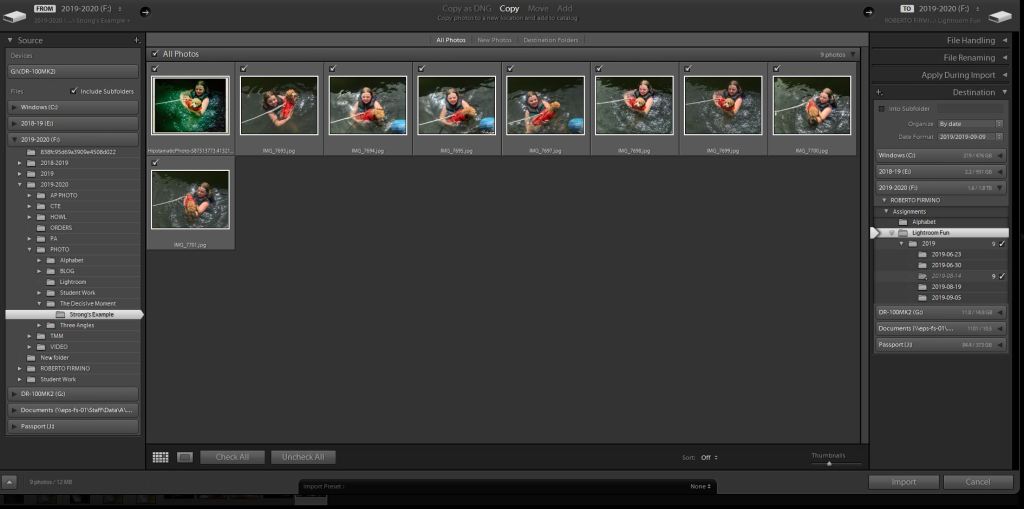
Step 2: Import all of your Jpegs into Lightroom.

Select the files you want to import and click on ‘Import’

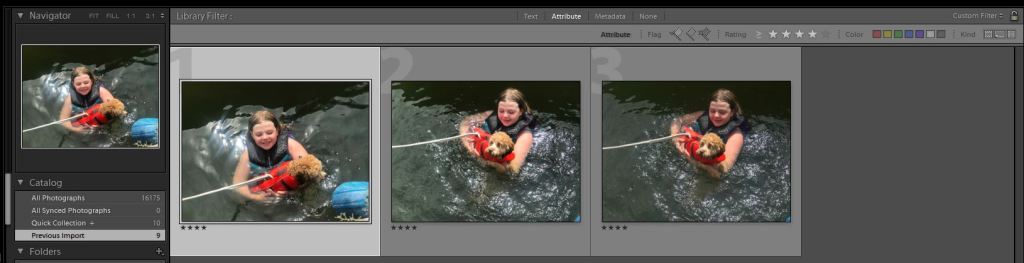
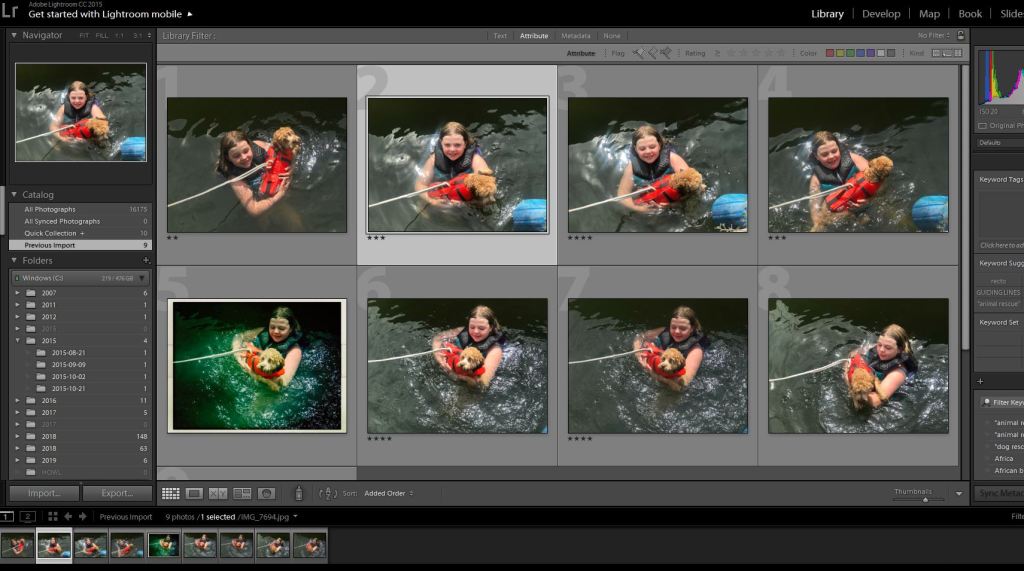
Step 3: In the Library Module rate your photos. You can do this by clicking on each photo, then rate it with the stars that appear on that screen. Use this system to find your three best images from the 10 you took this weekend. Give your best three a rating of 4 or 5 stars. When you are all done rating each photo, the screen will look like this.
Note how each photo has a rating underneath the image.

Step 4: On the top of the screen click ‘Attribute’ then click the 4 star rating. You will now see three photos

Notice how each photo has a rating of four stars.

These will be the three final photos you upload to your visual journal.

Edit the best picture of these three to get a final version.

Turn in the three final pictures to google classroom and upload it to your visual journal.

Today’s Activity: Combining Your Images into One Image

Today you will be able to combine your three images into one image.

Step 1: Open up lightroom and import the three photos of one object taken at three different angles.

Step 2: Select the images by hitting CTRL+ Click with your keyboard and mouse.

Step 3: Right Click on the three images and select Edit/Open as Layers in Photoshop.

Step 4: Photoshop will open up all three images into one composition.

Step 5: Strong will show you how to rotate and resize the images.

Step 6: When done save in Photoshop and close Photoshop.

Step 7: Strong will show you how to export your photo in Lightroom.

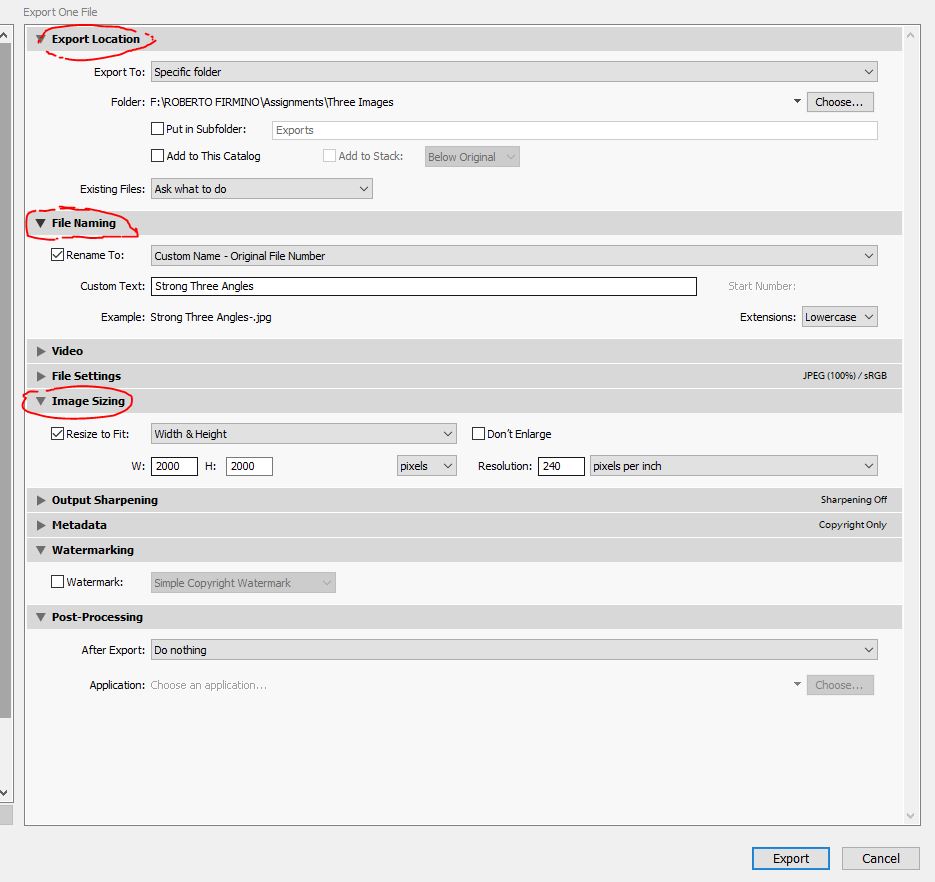
Go to File/Export

Change the settings so that your photo is saved

  1. To your F: Drive.
  2. As your Last Name Angles.jpg
  3. Width of 2000 pixels and Height of 2000 pixels

Then it “Export” + Upload to Google Classroom

To Do List for 9/9

Learning Target:

  • I can rate the photos I took for the Decisive Moment photo challenge.
  • I can edit my three pictures of the same subject from different angles into one document in Lightroom and Photoshop.
Steps:

1. Transfer the photos you shot for thePhoto Challenge, The Decisive Moment.  
2.Strong shows you how to rate your photos for this assignment. Use the rating system to select three final photos.
3. Strong shows you how to combine the images for Three Photos, One Edit. into one Photoshop document.
4. Strong goes over how to export your final photos for  Photo Challenge, The Decisive Moment. - THREE FINAL PHOTOS DUE TOMORROW BEFORE THE END OF THE PERIOD. 
5. Catch up on DSLR Scavenger Hunt & Quiz. Both in Google Classroom and need to be turned in.

Next Step:
Turn in Photos into Google Classroom.

To Do List for 9/6

Learning Target:

  • I understand the requirements for the Decisive Moment photo challenge.
  • I can take three pictures of the same subject from different angles.
  • I can load these images into Lightroom.
  • I know how to perform basic edits and organize photos in Lightroom.
Steps:

1. Today's Activity: Three Photos, One Edit.
2. We will watch a couple of videos on how to organize and edit photos in Adobe Lightroom.
3. Strong goes over the first Photo Challenge, The Decisive Moment. - SHOOT THESE THIS WEEKEND WITH YOUR PHONE.

Next Step:
Edit photos for the Decisive Moment Photo Challenge.
Design a site like this with WordPress.com
Get started