
1 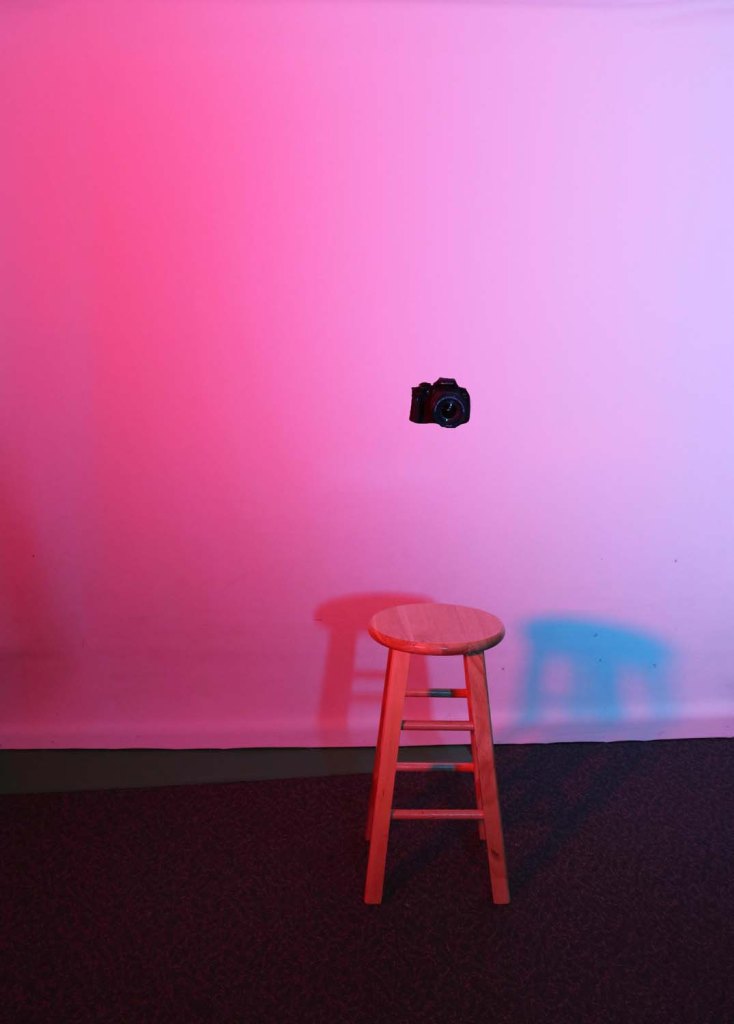
2 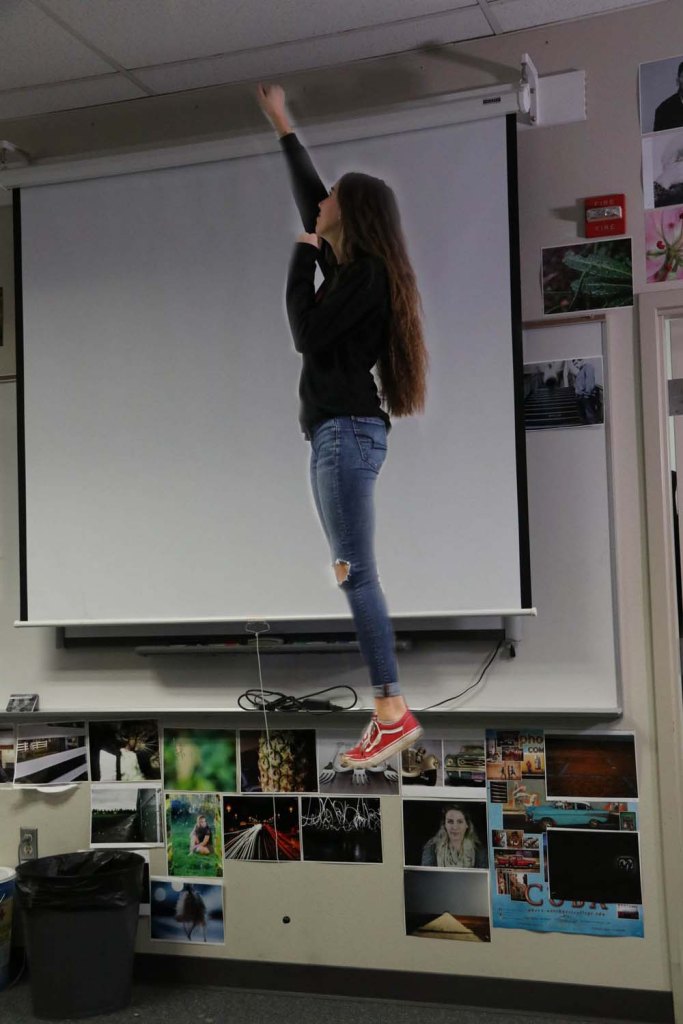
3 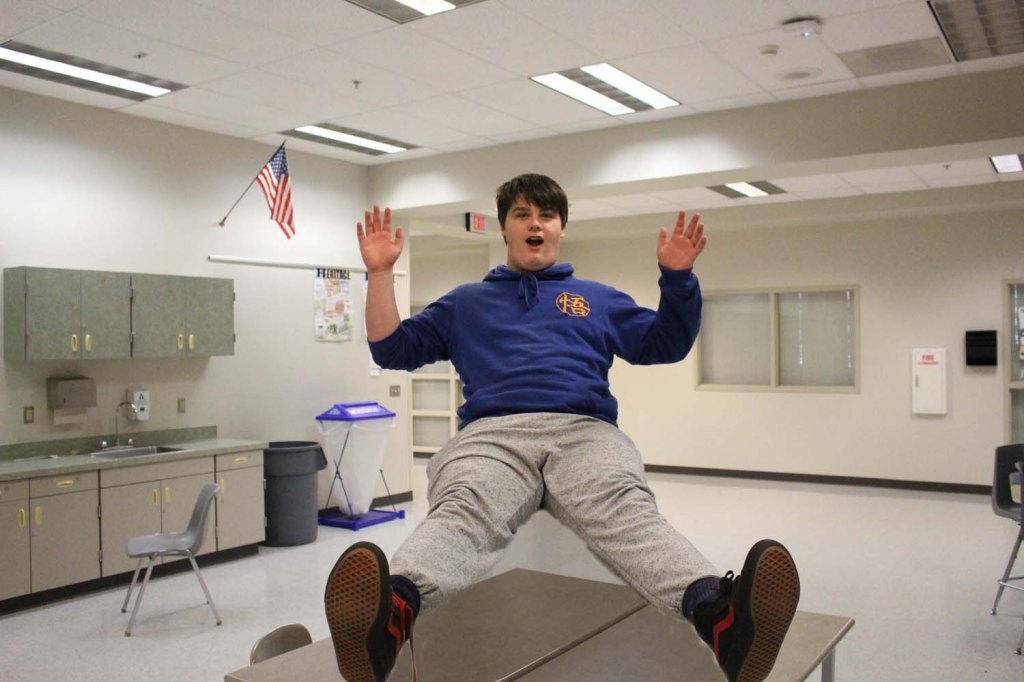
4 
5 
6 
7 
8 
9 
10 
11 
12 
13 
14 
15 
16 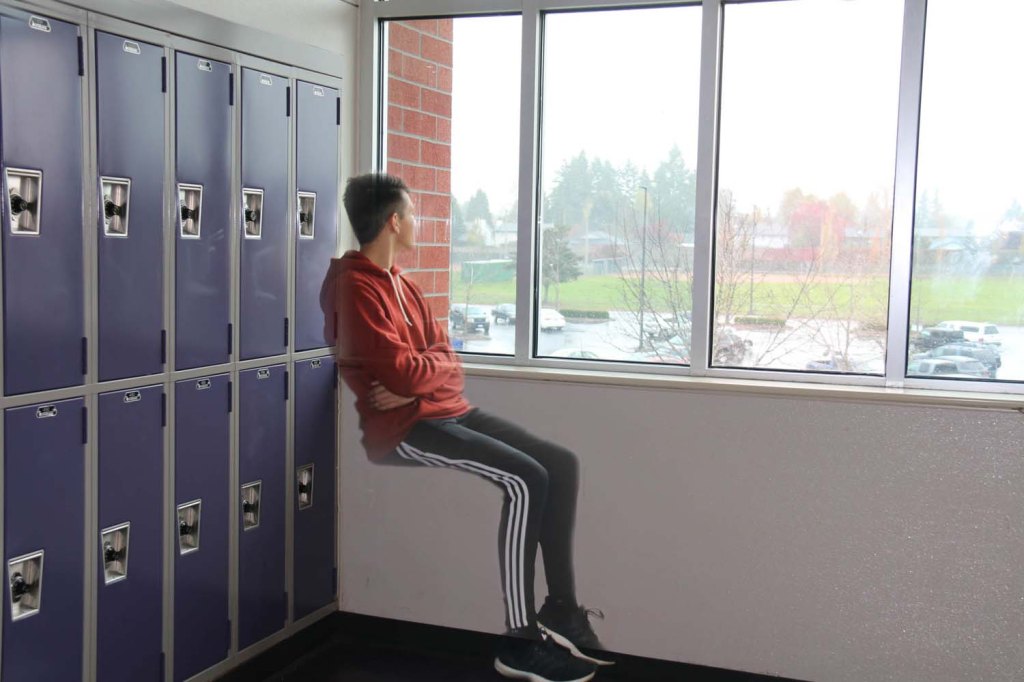
17 
18 
19 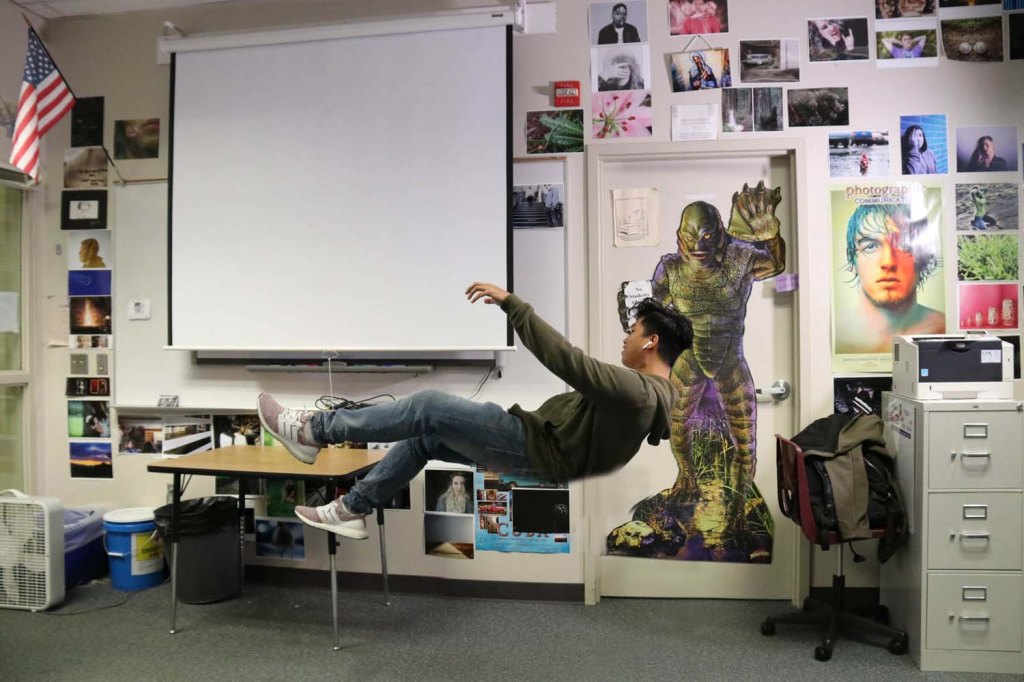
20
Photo Challenge Voting: Levitation: Period 5
1 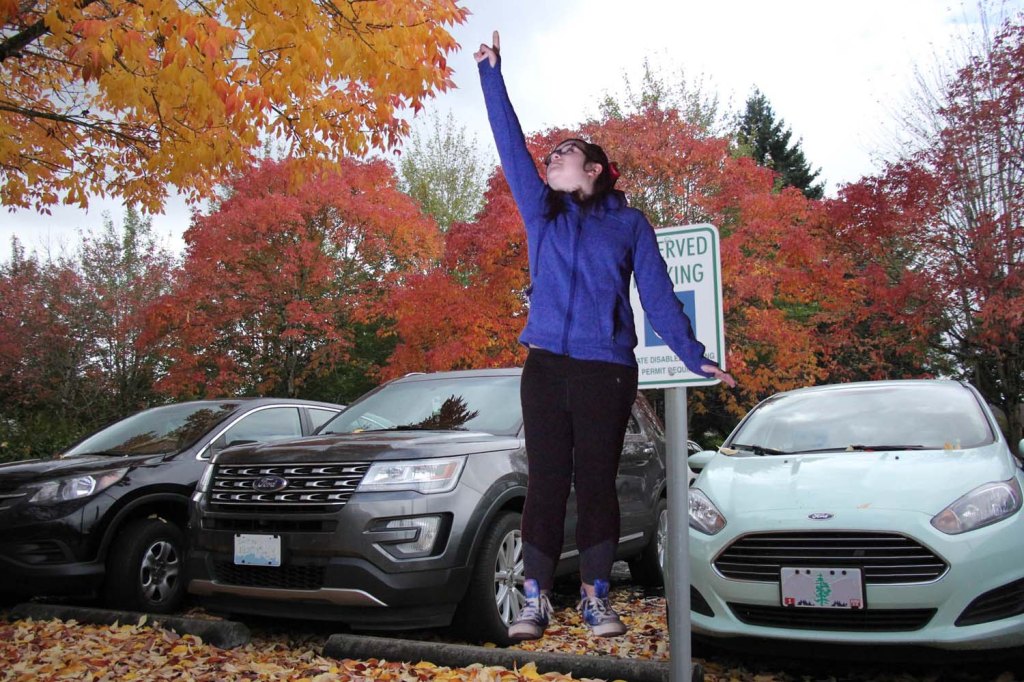
2 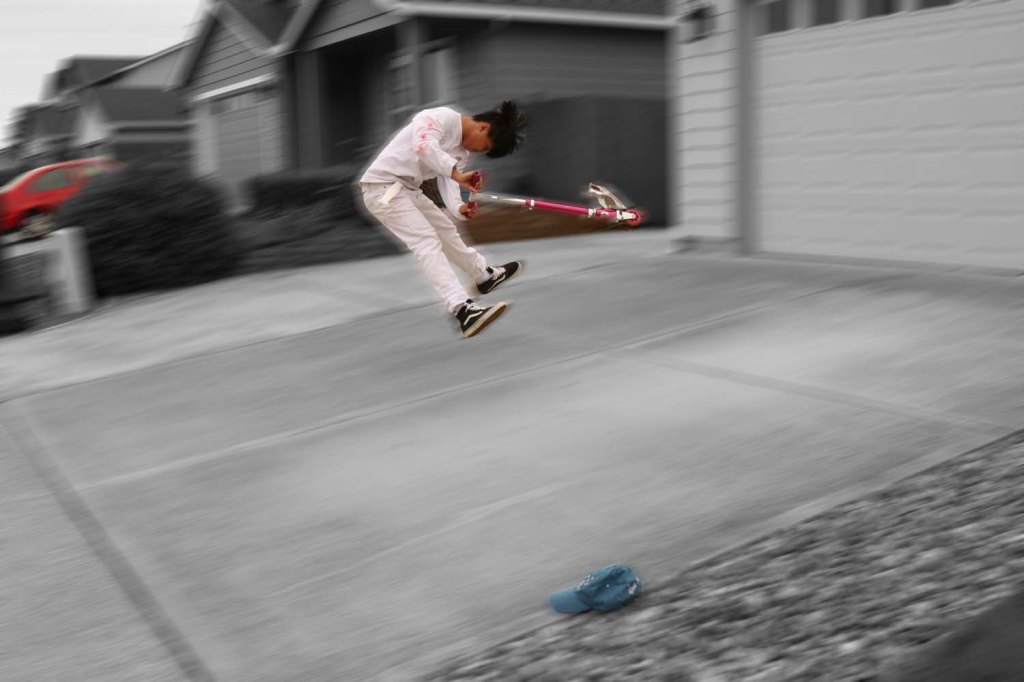
3 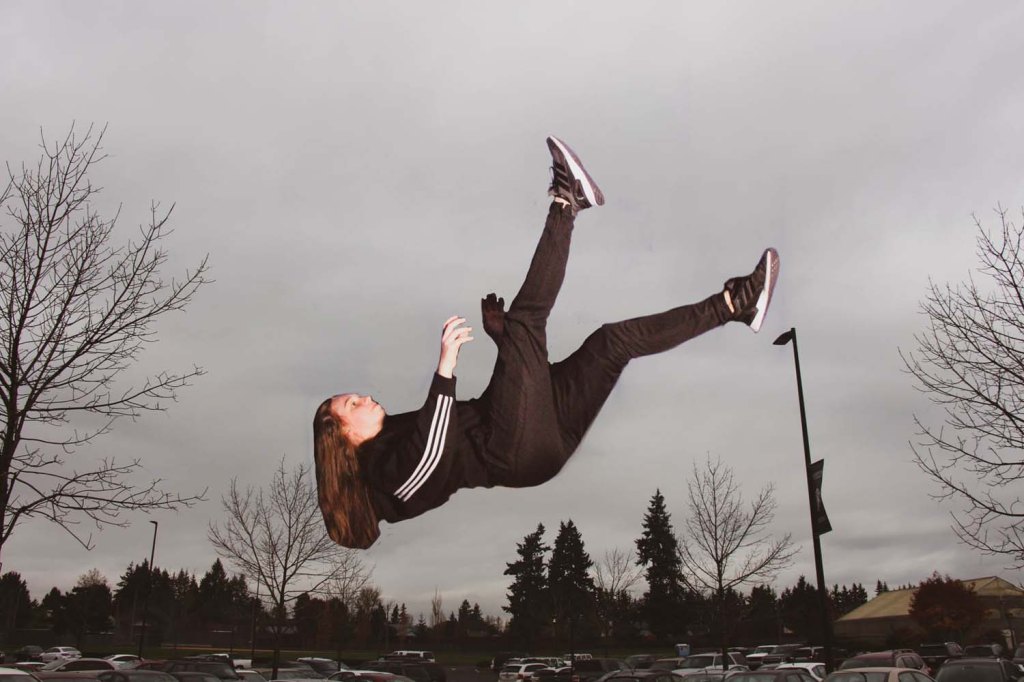
4 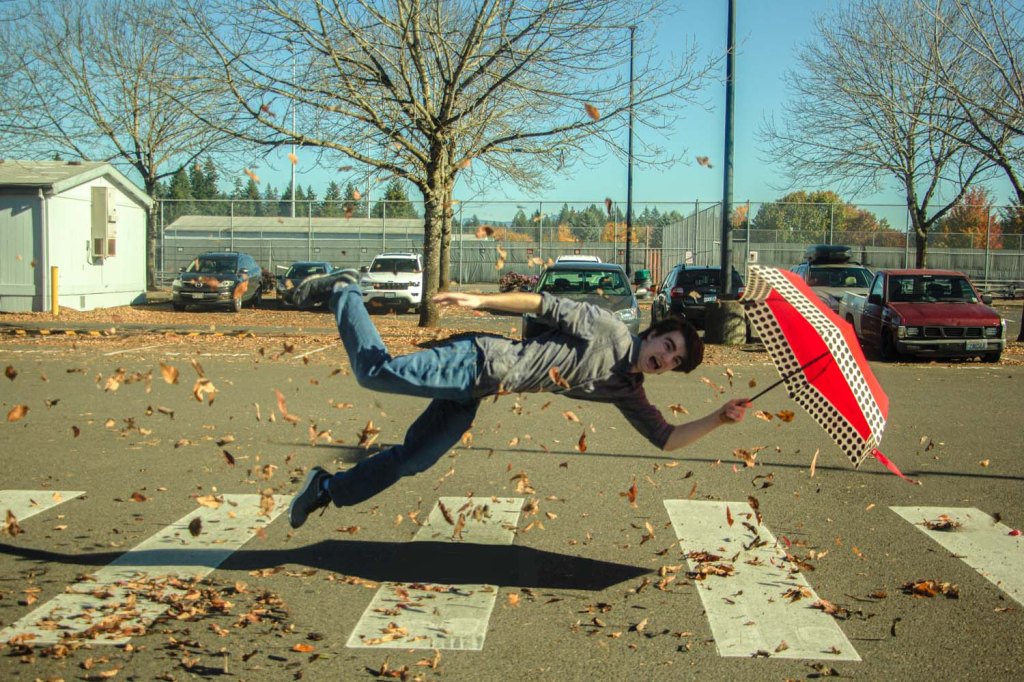
5 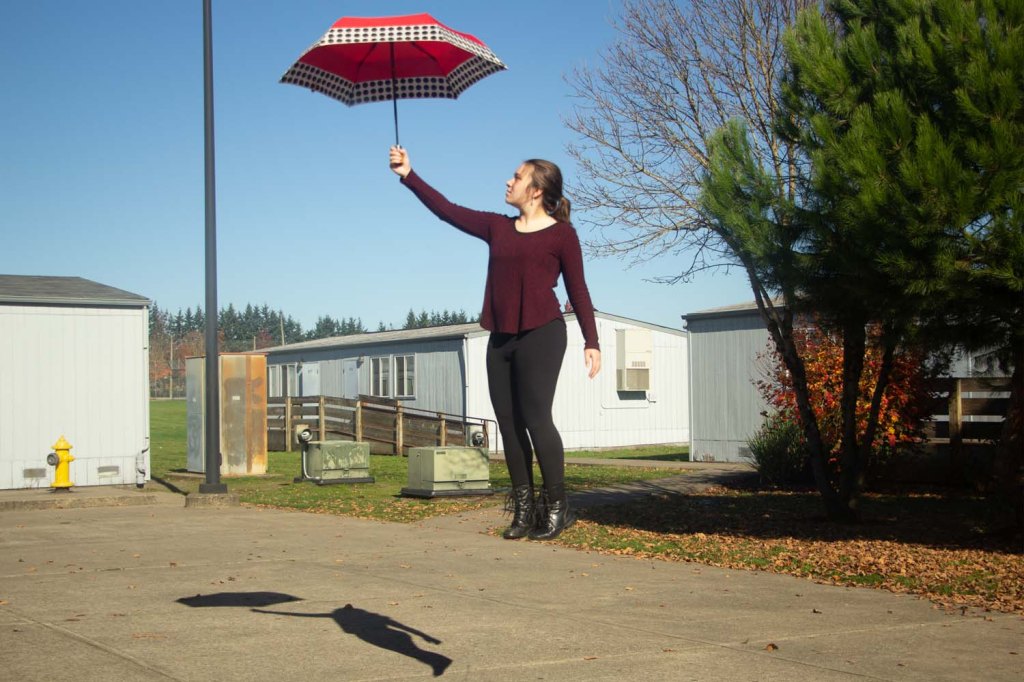
6 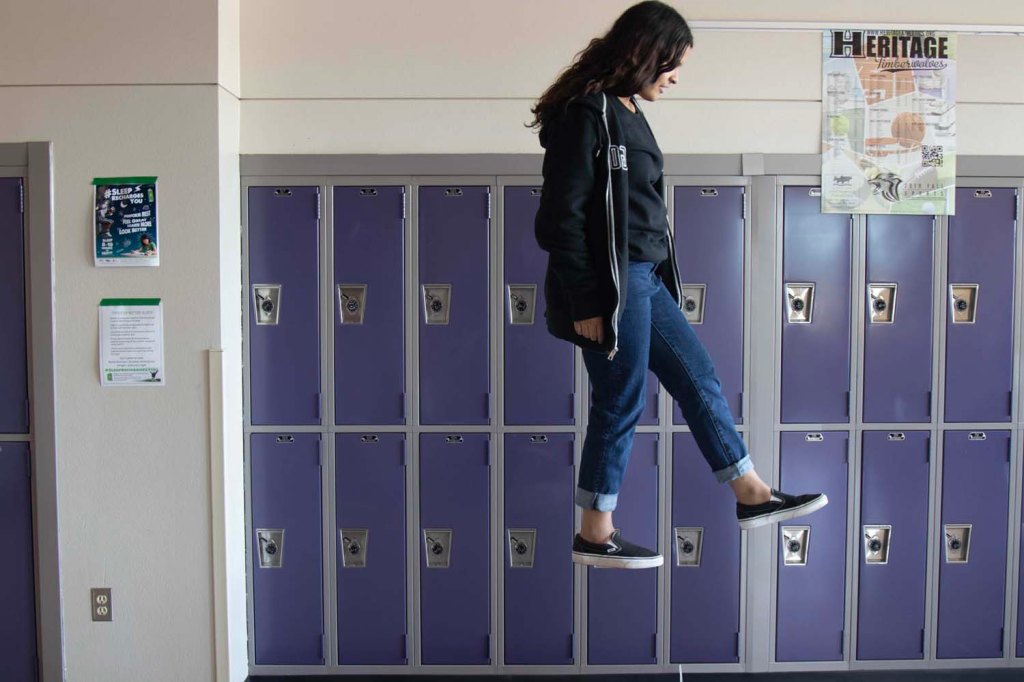
7 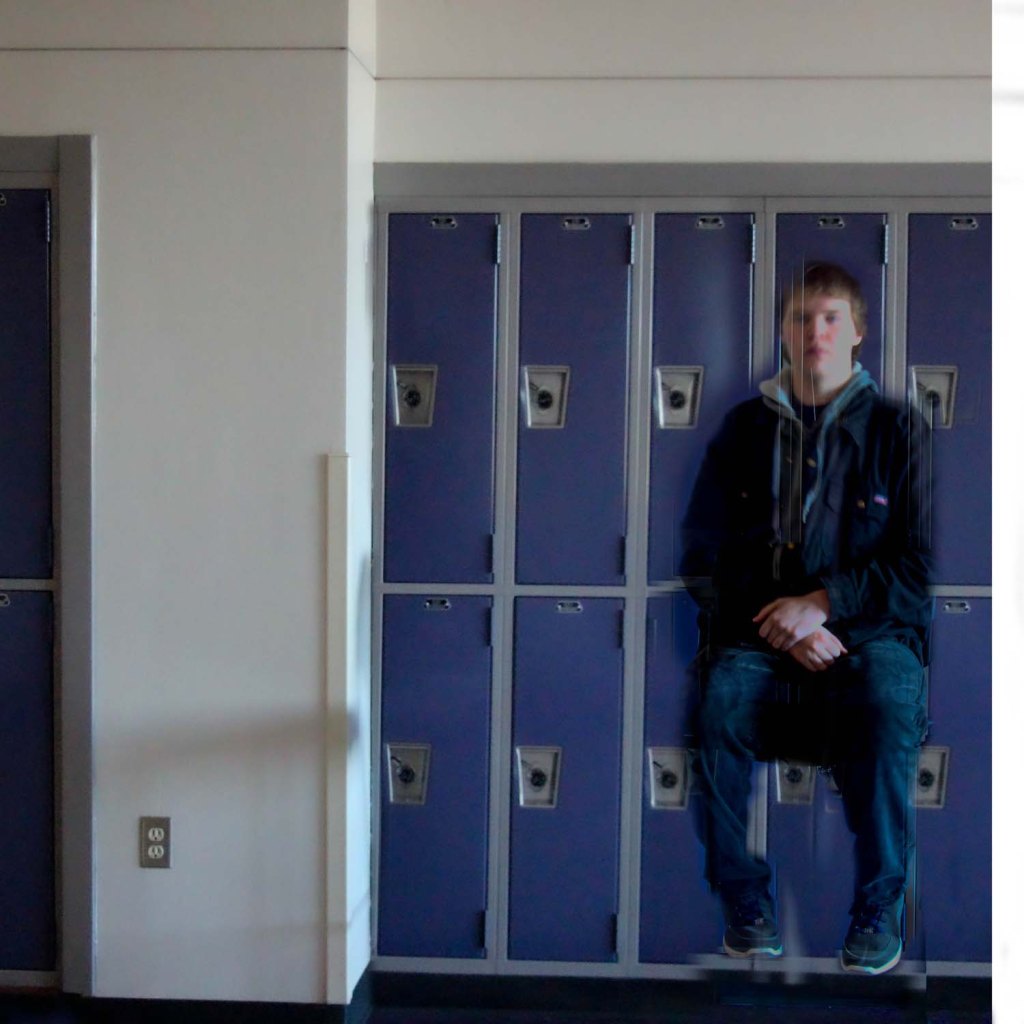
8 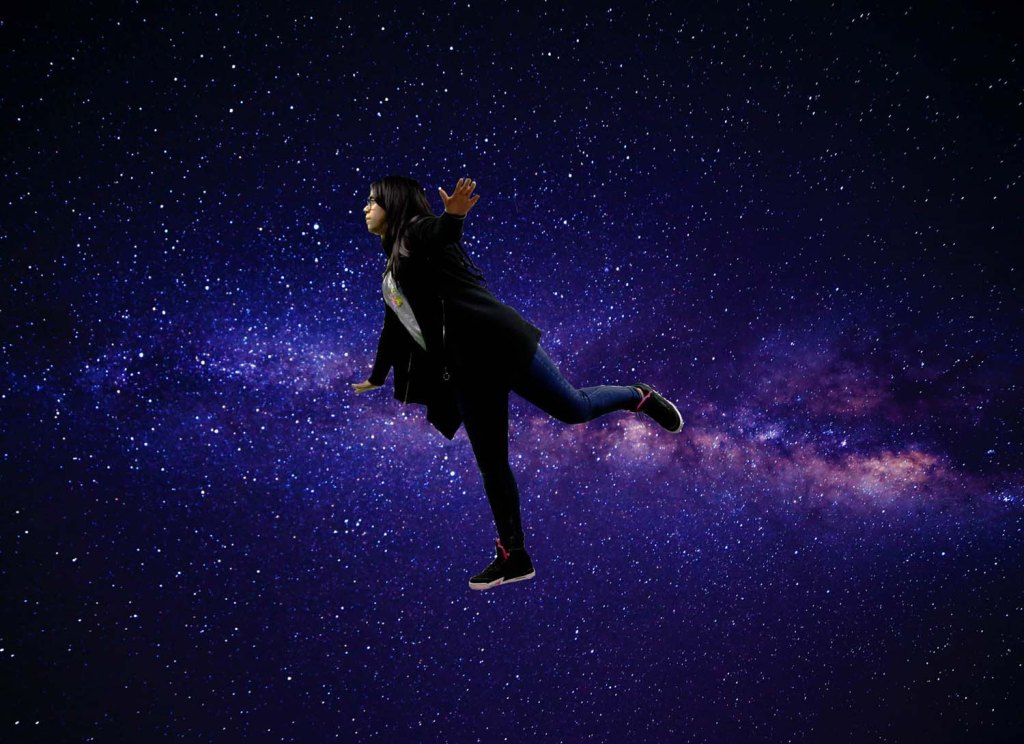
9
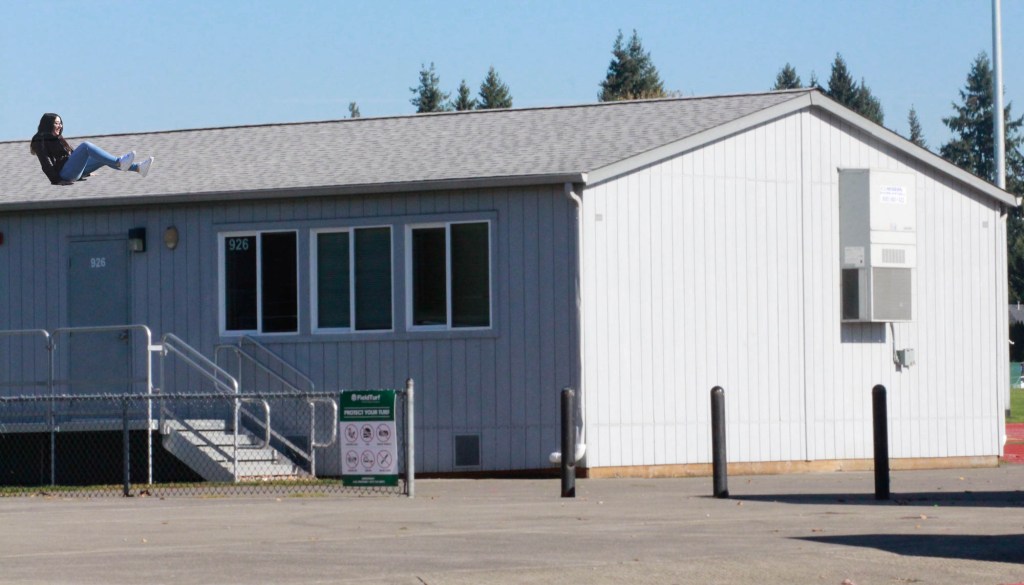
Photo Challenge Voting: Levitation: Period 4
1 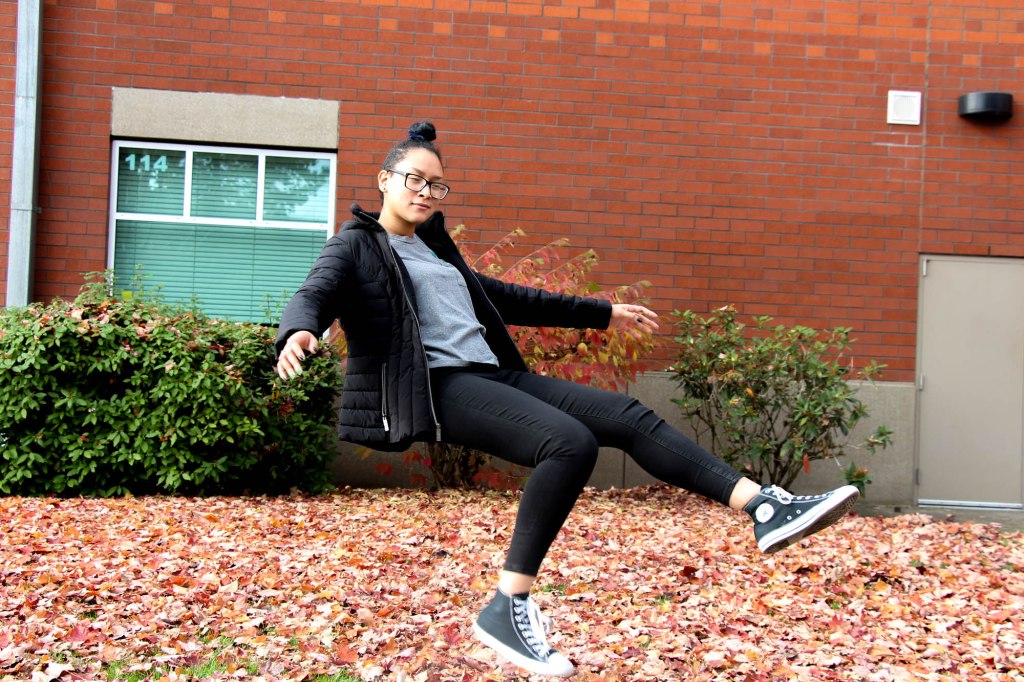
2 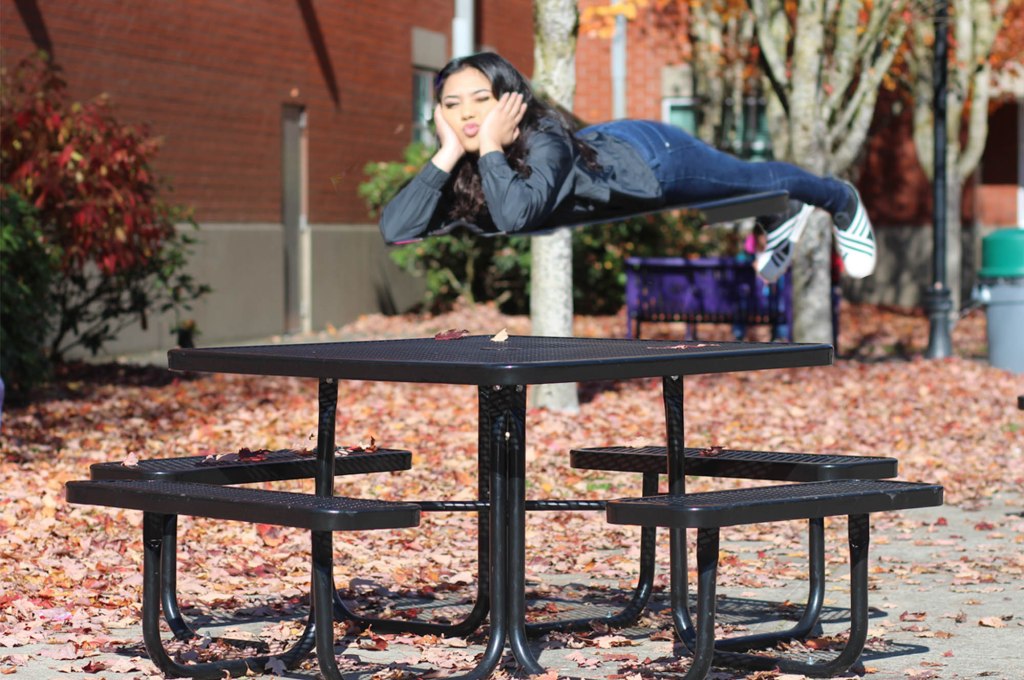
3 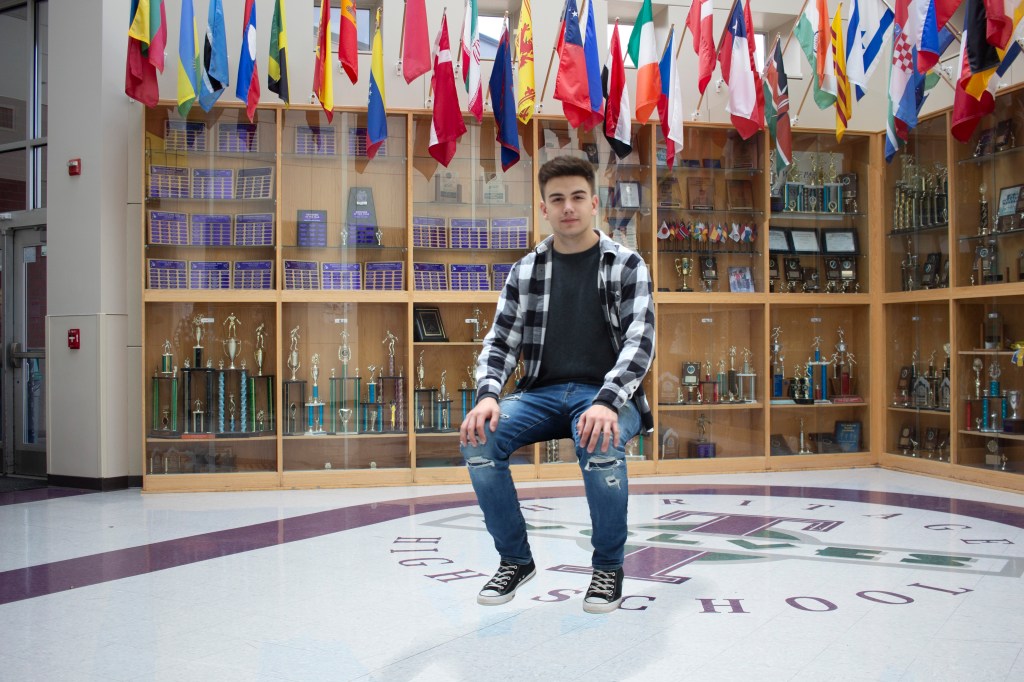
4 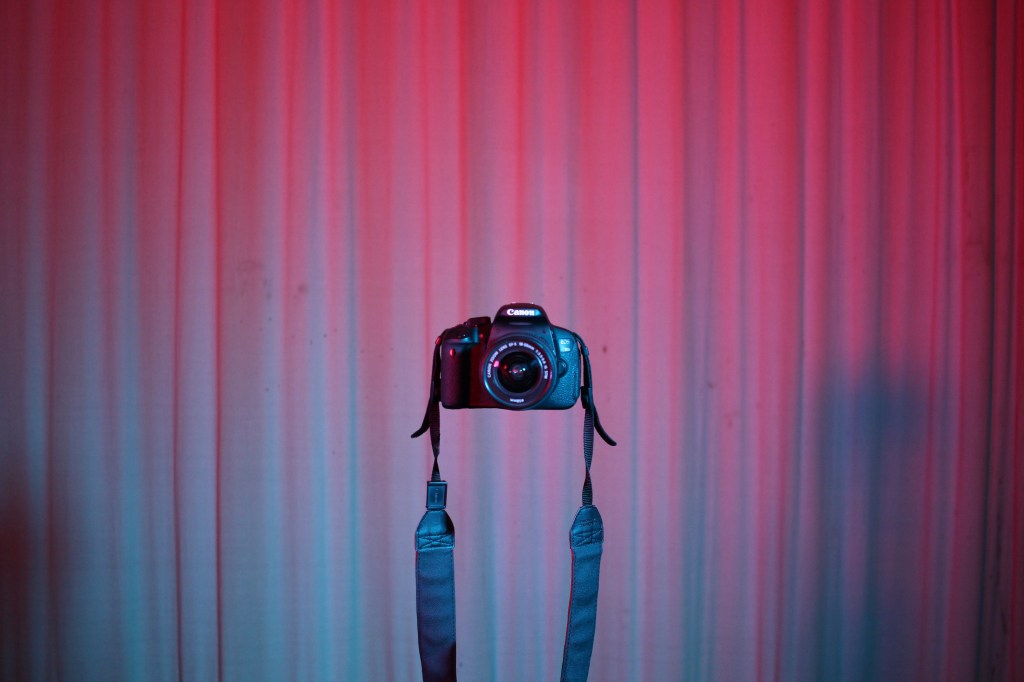
5 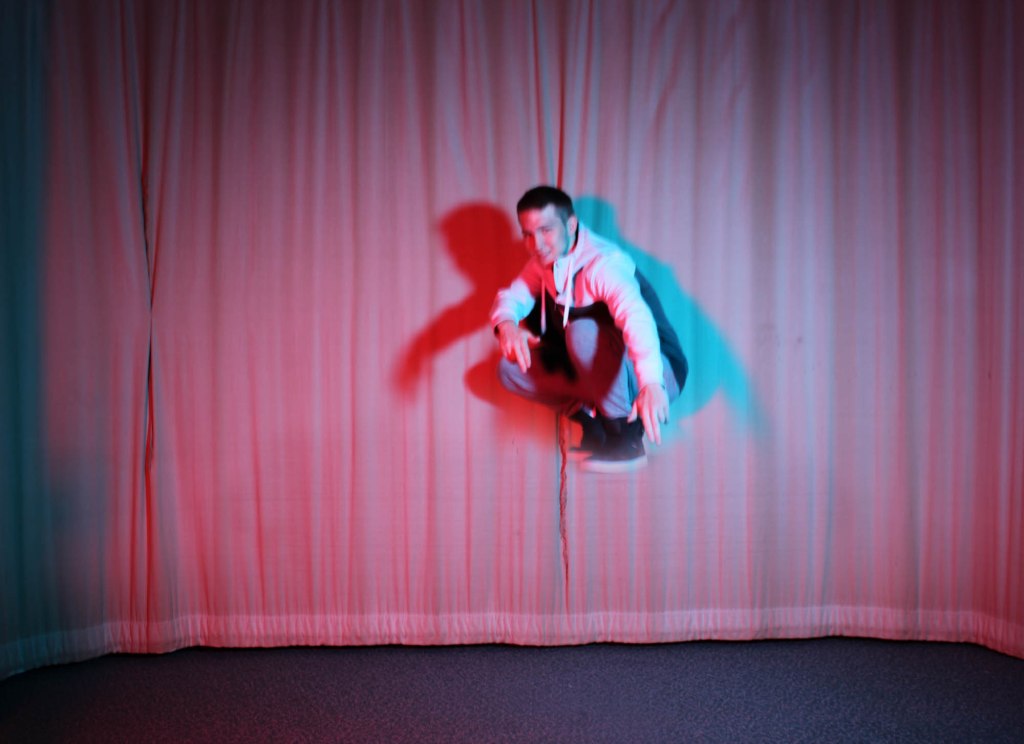
6 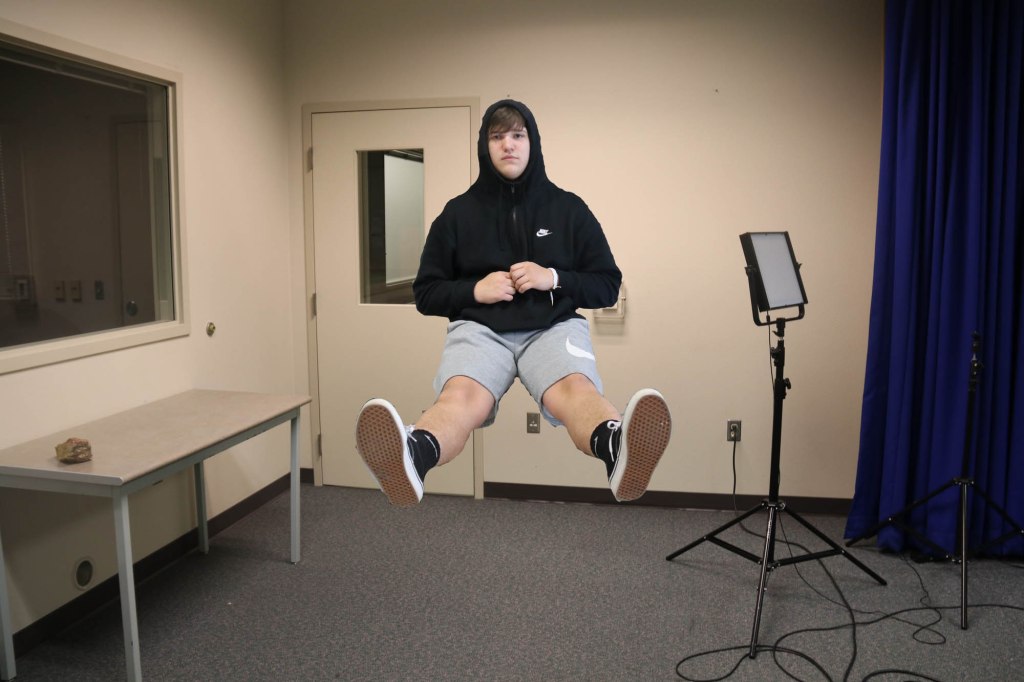
7 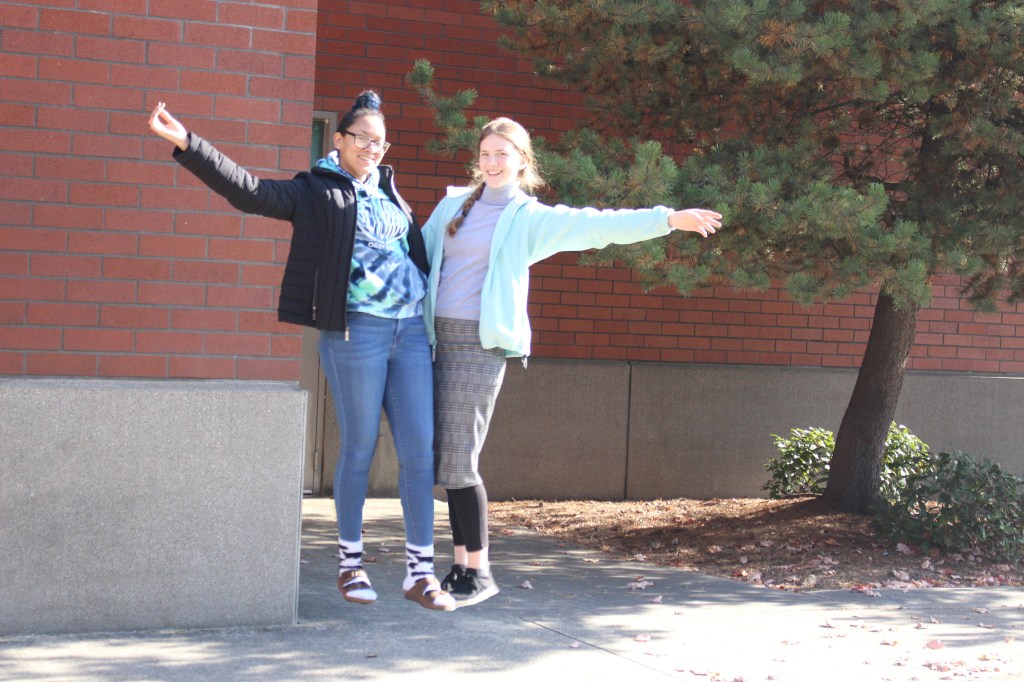
8 
9 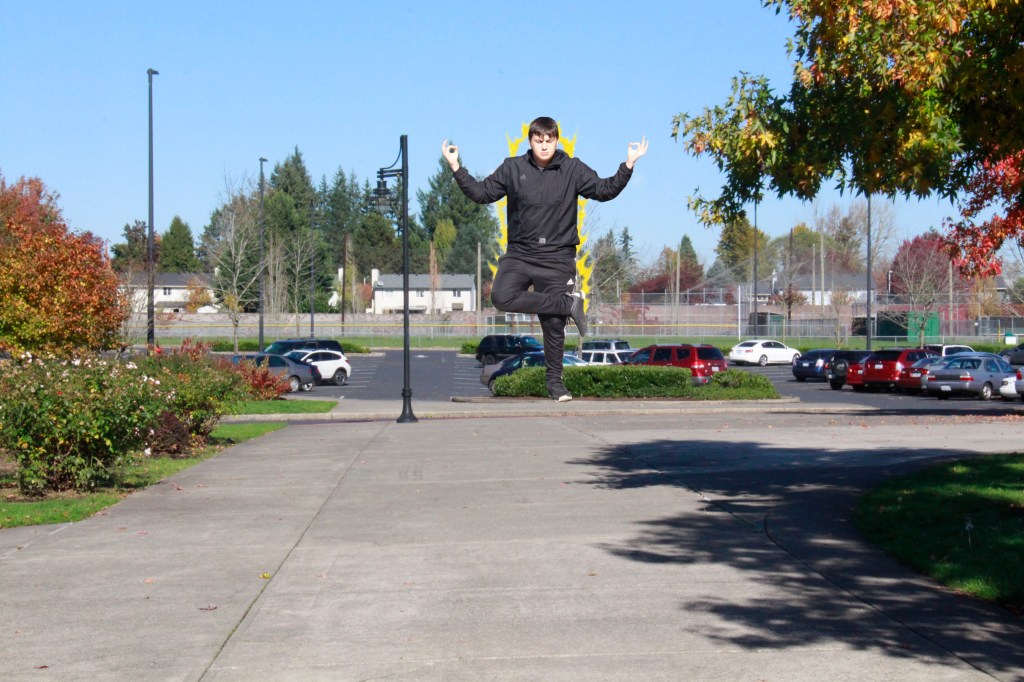
10 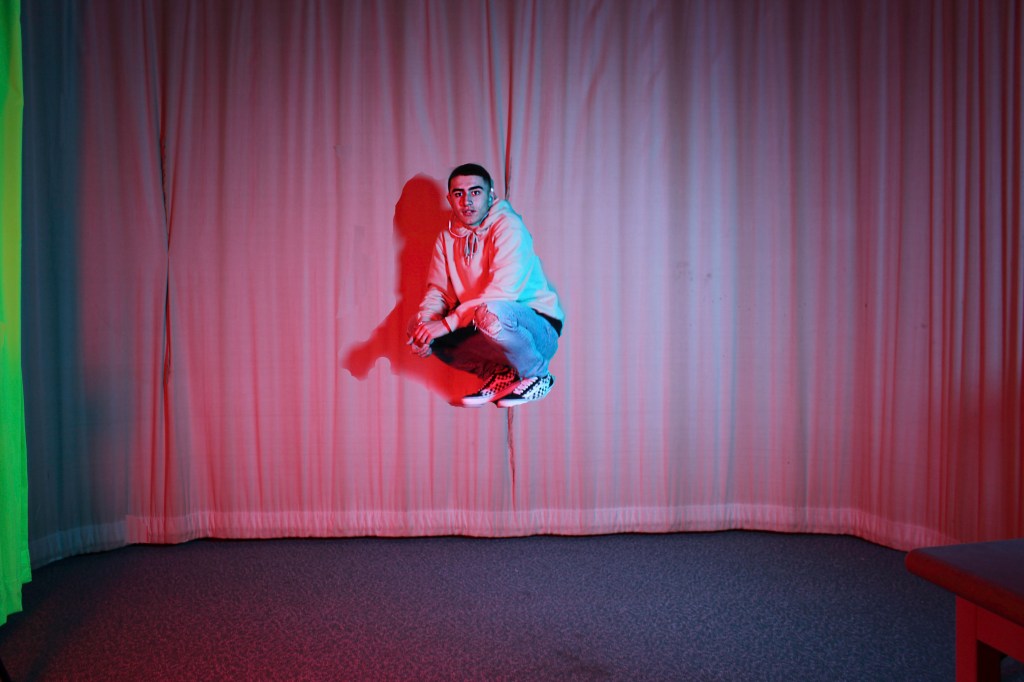
11 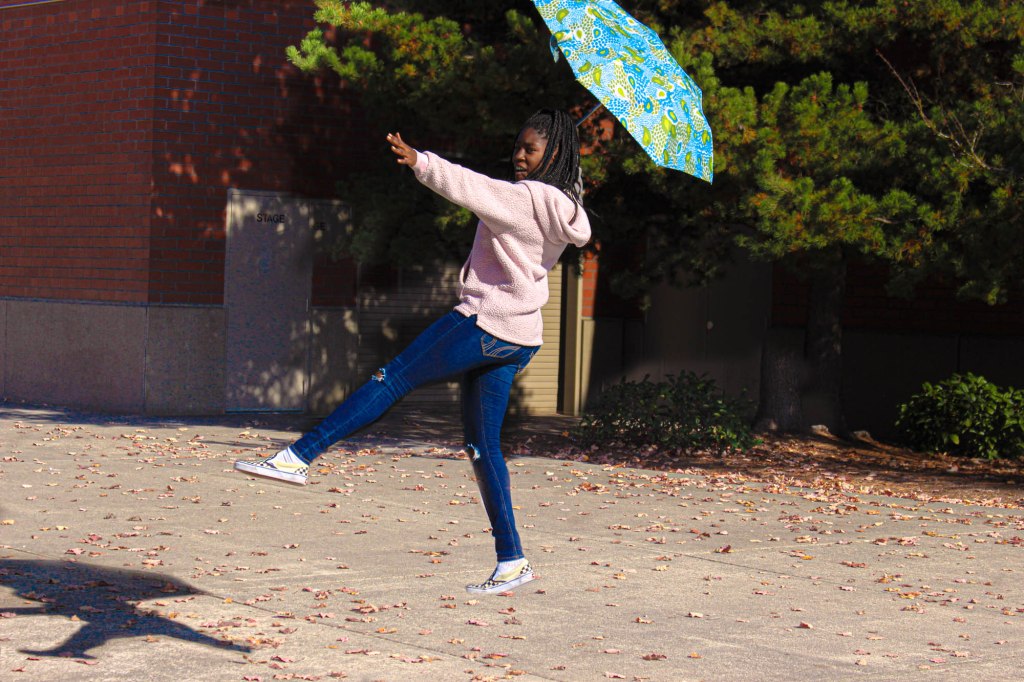
12 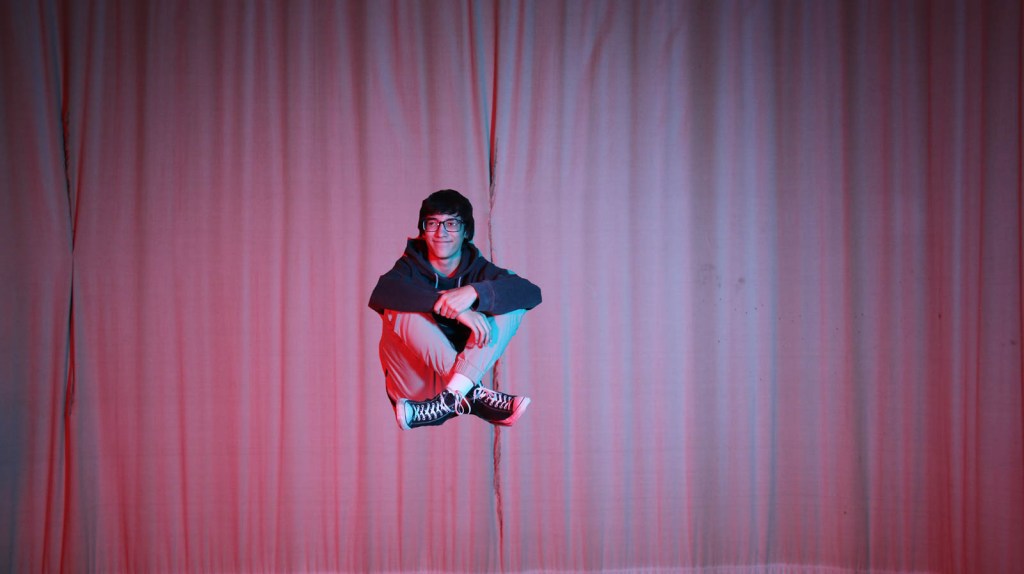
13 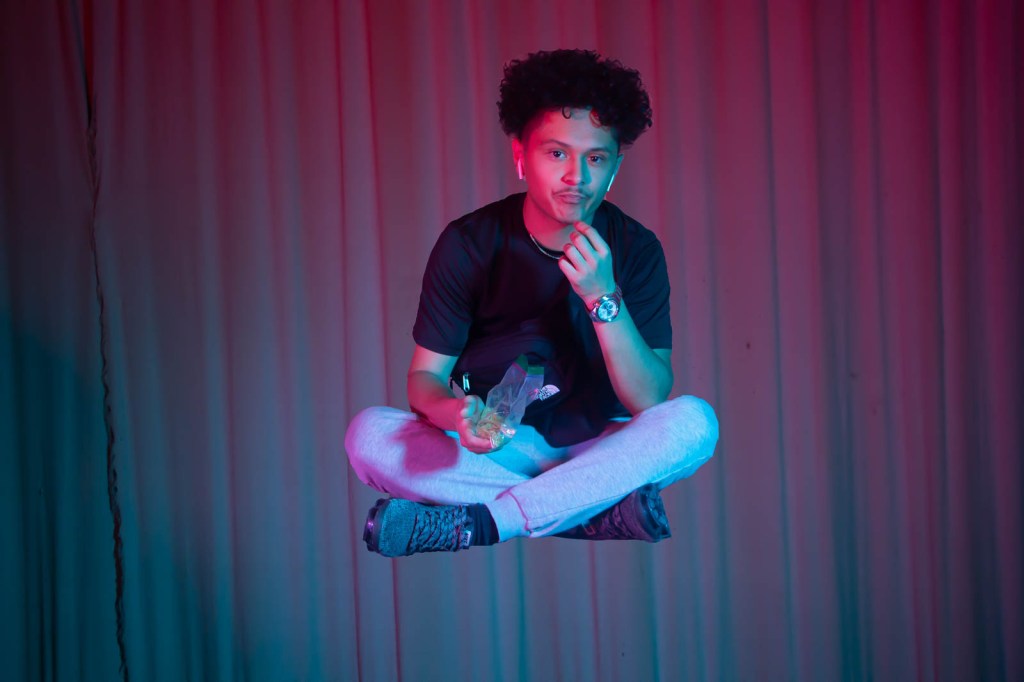
14 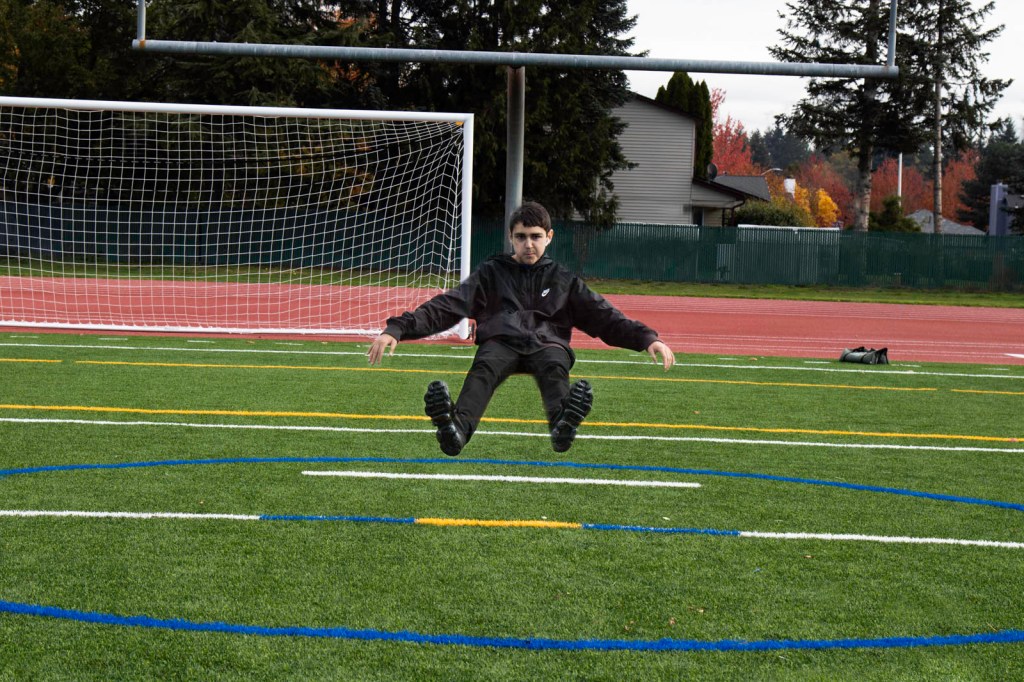
15 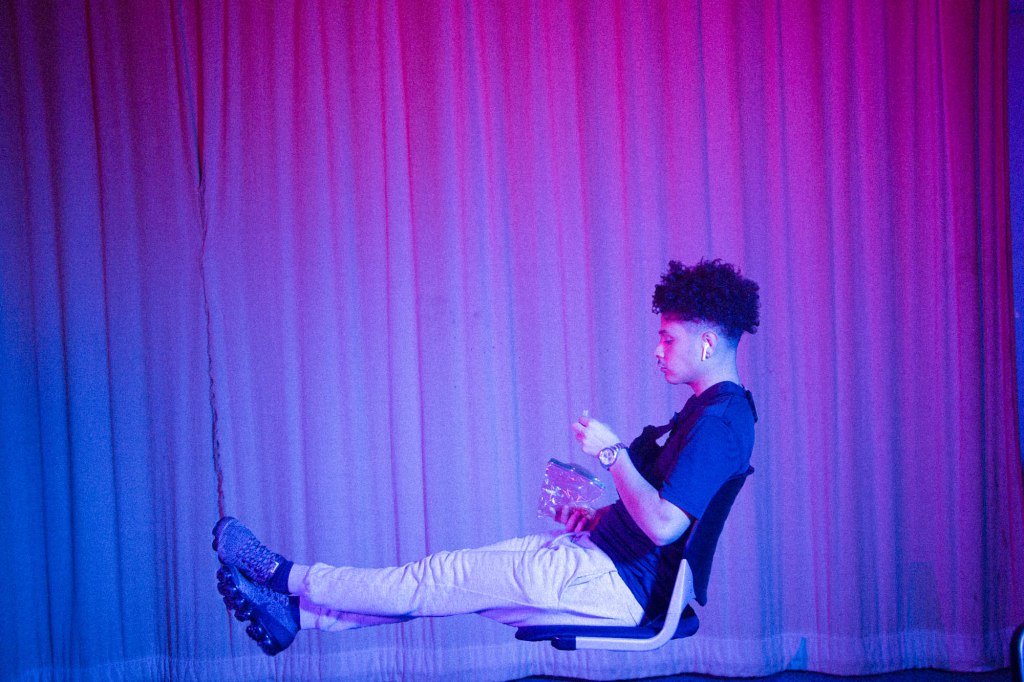
16 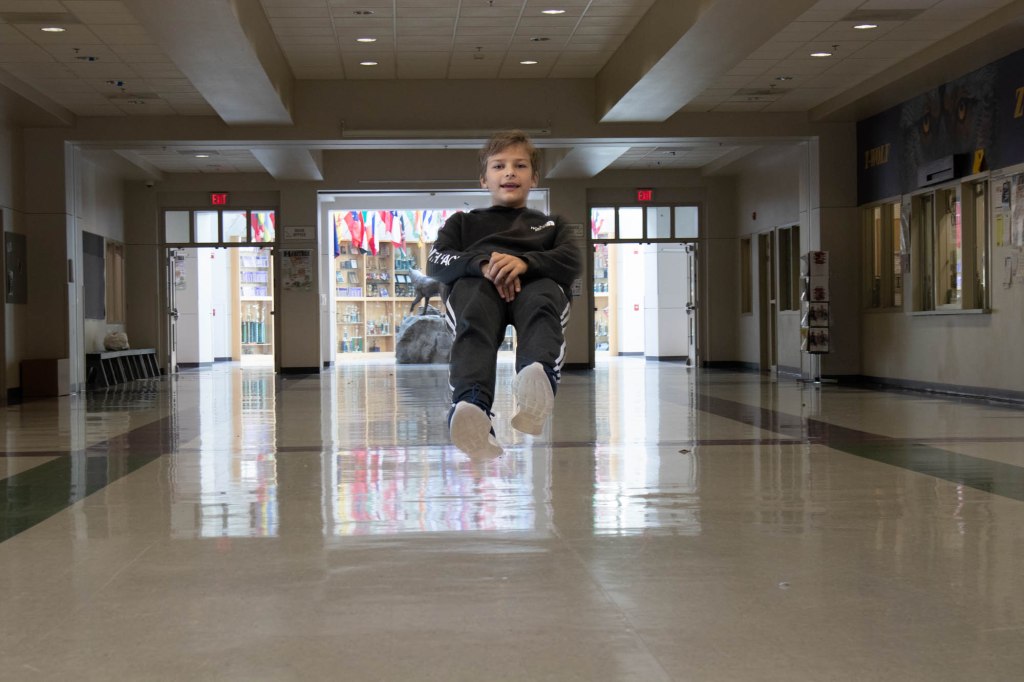
17
Visual Journal Turn in October – November
That’s right. Its time to turn in another update to your visual journal. This grade will cover all content from October to November so far.
This includes: Two paragraphs for each reflection and each photo you have turned in. Please write in complete sentences and write whole paragraphs.
Please include a photo for each of these assignments with the two paragraph written reflections.
Assignments in October/November:
- Indoor/Outdoor Photo Challenge & Paragraphs.
- Complementary Colors Photo Challenge & Paragraphs.
- Cd Album Cover Photo Challenge & Paragraphs (2 photos)
- Critique for CD Album Cover
- Collage with Layer Masks
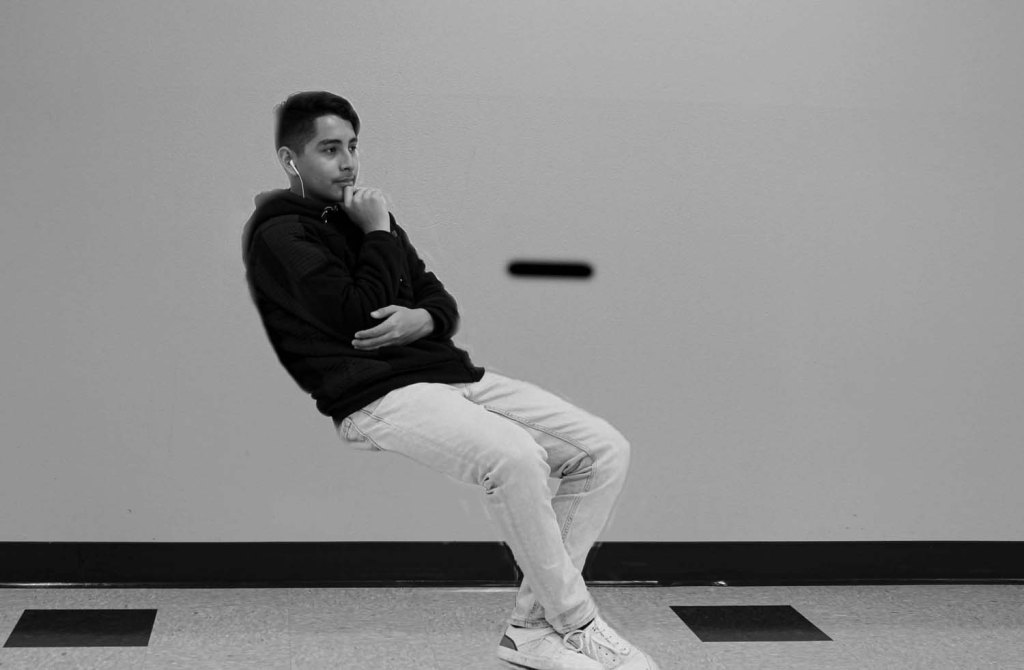
- Levitation Photo Challenge & Paragraphs
- Cloning Photo Challenge & Paragraphs
Here’s how to turn in an updated link to your Adobe Spark page. Everyone must do this to make sure the updated version is being turned in.
Click Share at the top of your Adobe Spark Interface.

Click Publish and Share Link.
Click on the Drop down menu for “Pick a Category”
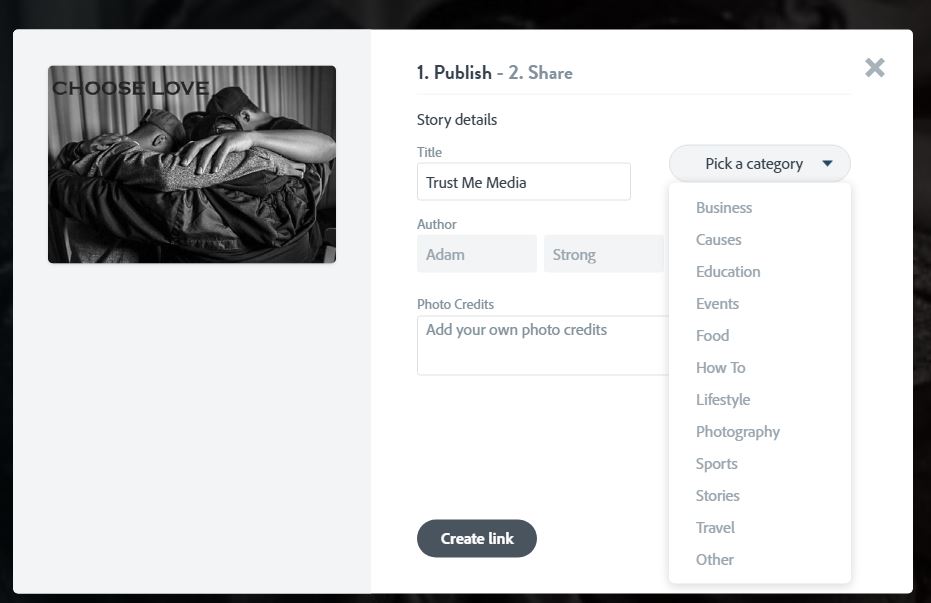
Choose Education
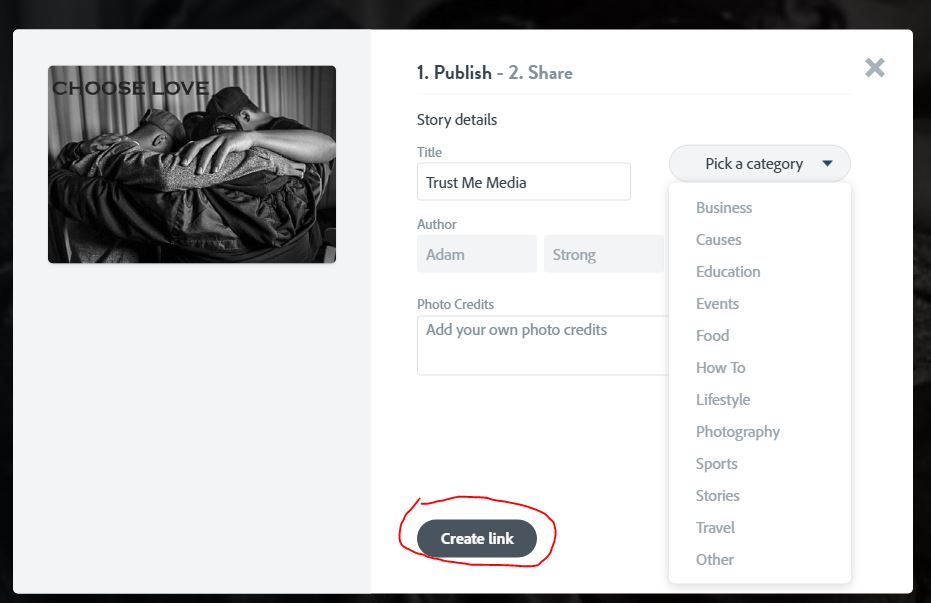
Click on Create LInk
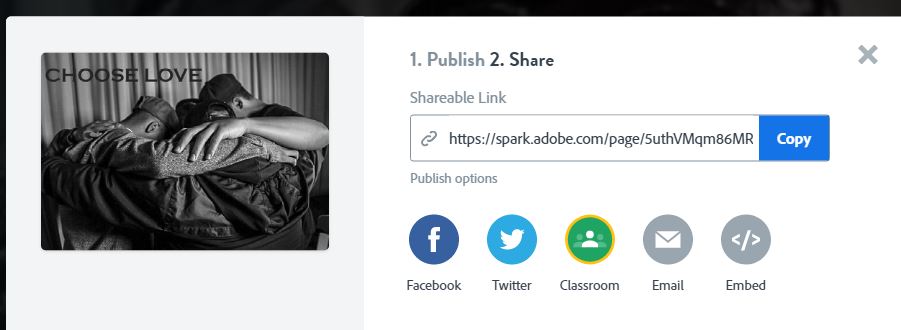
Click Copy.
Paste the link into Classroom. Or click on Classroom and see if you can turn it in that way.
SEPTEMBER CHECK IN IS DUE ON FRIDAY, 11/22
Quote of the Day
“It is only through art that we can escape from ourselves and know how another person sees a universe which is not the same as our own and whose landscapes would otherwise have remained as unknown as any there may be on the moon.”
Marcel Proust
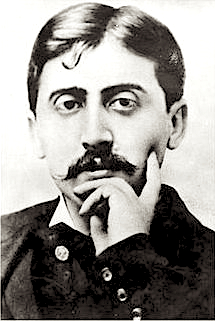
What does this mean to you? How can photography act as a window into someone’s mind? Have you ever felt this way while looking at a a photograph? Explain your thinking.
After reading the quote above.answer the questions in your visual journal, Adobe Spark Page.
This Week’s Assignment: Famous Photographer Recreation

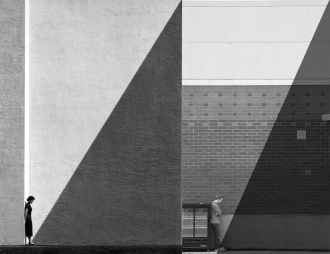
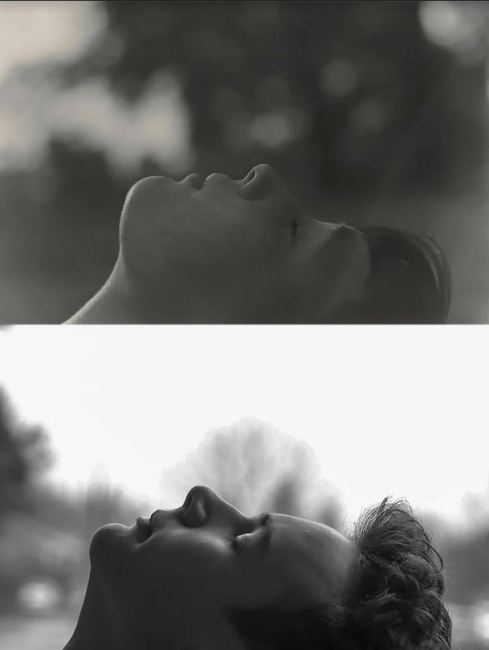
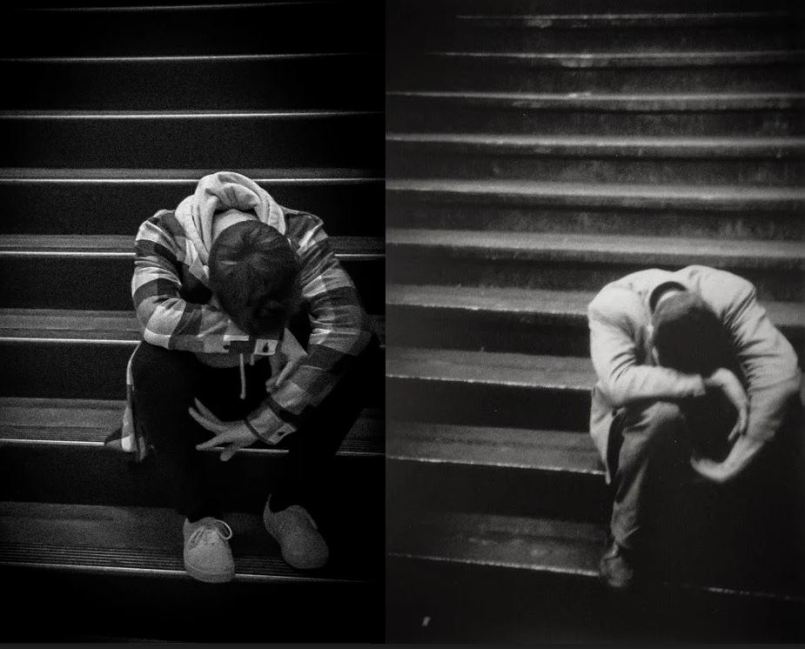
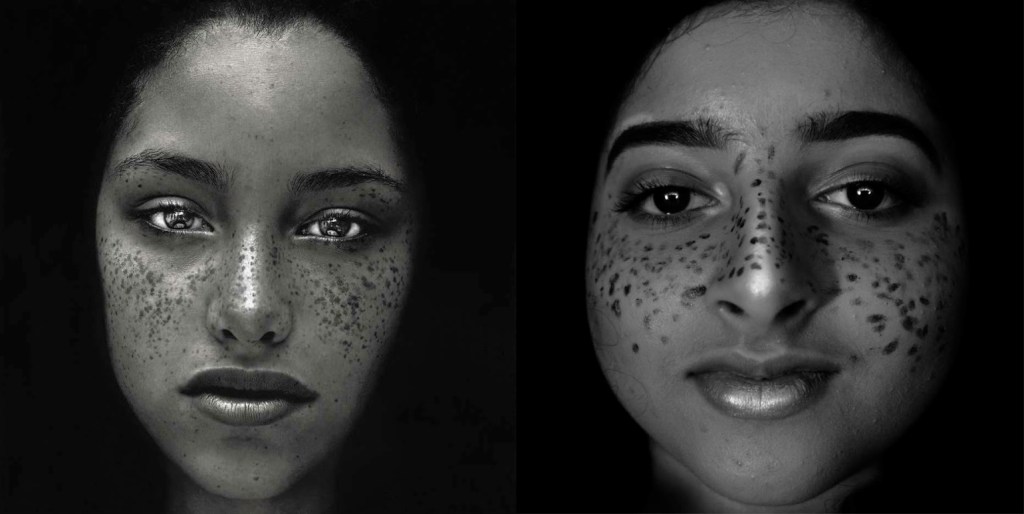
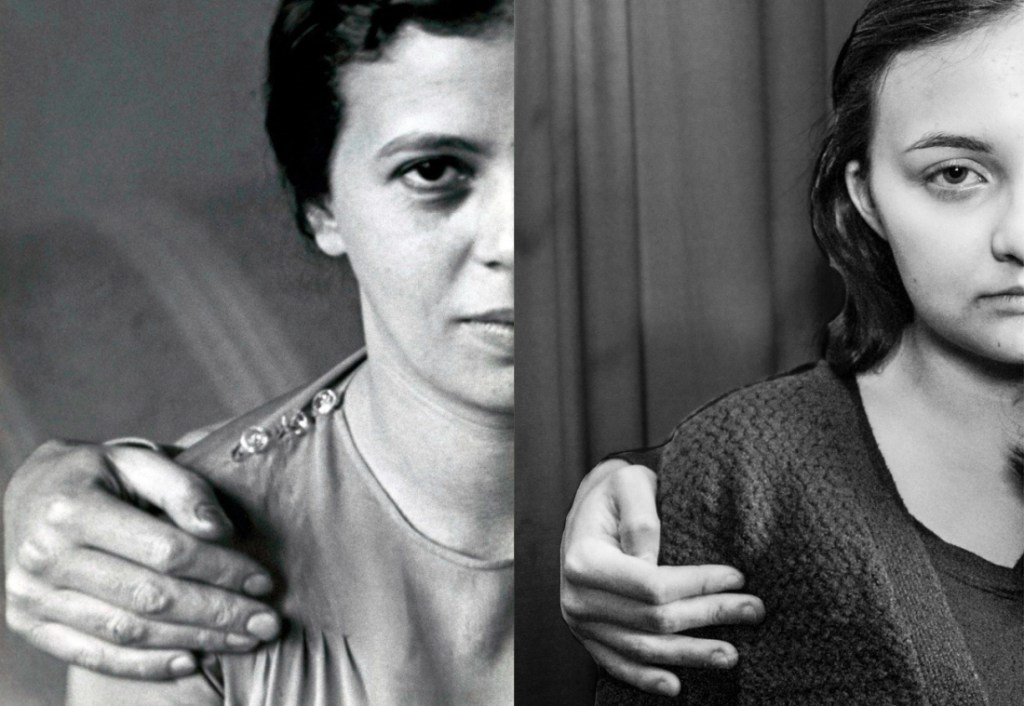


You will choose one of your photographers from your Photographer Presentation to copy in every way possible.
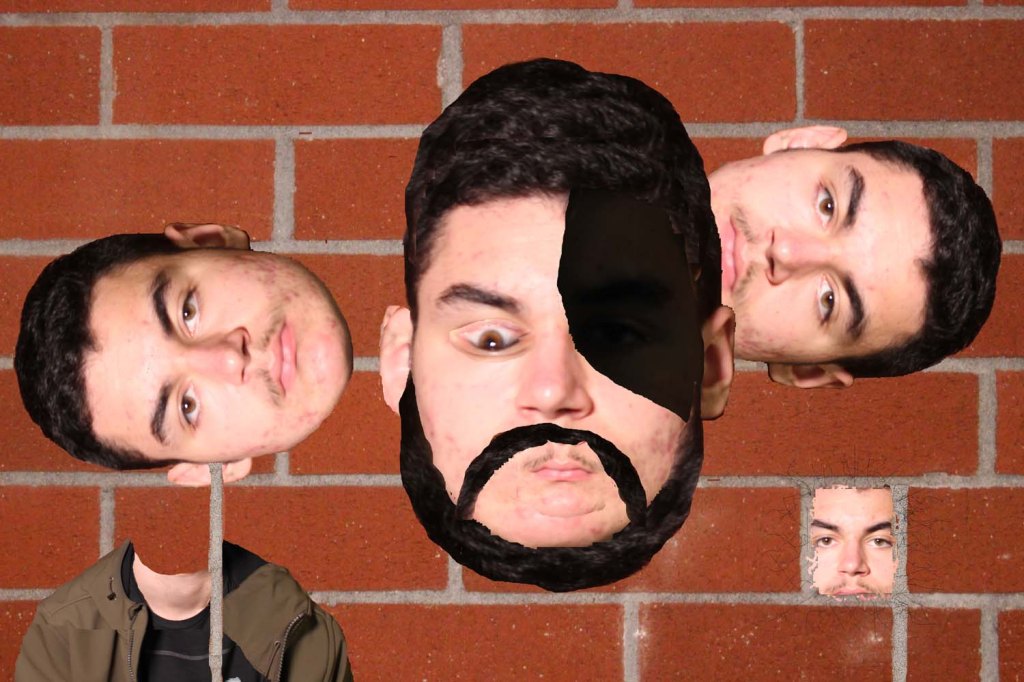
Your photo challenge PHOTOS will be on the right and the original photo will be on the left. More on how to do this later on. Above you’ll see the students before you who have already done this assignment. Notice how in many of the photos some things are different, but most of the image has the same subject.
The photo recreation is due on 11/20.
To Do List for 11/15

Learning Target:
- I can finish researching the photographer I chose.
- I can download images by them and import them into We Video.
- I can record the script I wrote on a voice recording device
- I can research the questions present on the assignment post.
- I can Finish and Export my Vidoe and turn it into Google Classroom.
Steps:
Strong goes over your questions in WeVideo
- Continue your research for the Famous Photographer Audio Slidesow project.
- Here’s how to export your video From We Video and turn it into Google Classroom.
- Start work on the Famous Photographer Photo Recreation – Due on Monday.
Friday
Last day for on time turn in for Famous Photographer WeVideo Project.
To Do List for 11/13
Learning Target:
- I can finish researching the photographer I chose.
- I can download images by them and import them into We Video.
- I can record the script I wrote on a voice recording device
- I can research the questions present on the assignment post.
- I can Finish and Export my Vidoe and turn it into Google Classroom.
Steps:
Strong goes over your questions in WeVideo
- Continue your research for the Famous Photographer Audio Slidesow project.
- Answer the questions I ask in my Famous Photographer post. Start writing out the answers in a Google Doc. Write it like you would a script for a video, or a TV show.
- Record your answers as a script using your phone.
- Transfer the file from your phone to Google Drive.
- Download from Google Drive and import it into WeVideo.
- 6.Download photos made by your photographer and bring them into WeVideo.
- Here’s how to export your video From We Video and turn it into Google Classroom.
Thursday
Keep working on your Famous Photographer Project until you finish it.
Exporting Your Completed We Video Presentation
Step 1: Complete all edits and transitions in your WeVideo project.
Step 2: Click the Finish button in the upper right hand corner.
Step 3: Enter in the final Title. Give it a name that describes the work of your photographer.
Step 4: Choose the HD Resolution from the Resolution Drop down menu.
Step 5: Under Destination, Click on the Triangular Google Drive Icon.
Step 6: Click on the Lock and make sure that the video is public. This will make the video visible, so I can watch and grade it.
Step 7: Press Export.
Step 8: Copy the link the screen gives you when the Video is done exporting and turn in that link into the assignment link in Google Classroom.
To Do List for 11/12

Learning Target:
- I can finish researching the photographer I chose.
- I can download images by them and import them into We Video.
- I can record the script I wrote on a voice recording device
- I can research the questions present on the assignment post.
Steps:
Strong goes over your questions in WeVideo
- Continue your research for the Famous Photographer Audio Slidesow project.
- Answer the questions I ask in my Famous Photographer post. Start writing out the answers in a Google Doc. Write it like you would a script for a video, or a TV show.
- Record your answers as a script using your phone.
- Transfer the file from your phone to Google Drive.
- Download from Google Drive and import it into WeVideo.
- 6.Download photos made by your photographer and bring them into WeVideo.
Tuesday
Finalize your WeVideo Project and prepare to turn it in tomorrow, Wednesday. 11/12,
 Strong Photography 19-20