
To Do List for 11/4

Learning Target:

  • I know how to edit layer masks to create a cloned photo.
  • I can take multiple pictures for cloning and a clean shot of the background.
  • I know I need to use a tripod to make the effect happen.
  • I know the requirements for the Famous Photographer Audio Slideshow

Steps:

1.Strong goes over the requirements for the next assignment: Famous Photographer Audio Slidesow.

2. Finish the editing for your clone photo. Image is due tomorrow.

3 Complete the reflection for your Cloning image. Copy the two paragraphs on what you did well and what you could do to improve and upload the final clone photo to your Adobe Spark Visual Journal. Paragraphs, not sentences!

4. If you are done with the clone photo, research and choose a famous photographer to do research on. Start researching that photographer.

Tuesday

Clone photo is due. Research photographers for Famous Photographer Audio Slideshow:.
To Do List for 11/1

Learning Target:

  • I understand the requirements of the Cloning Challenge & How to do it.
  • I can take multiple pictures for cloning and a clean shot of the background.
  • I know I need to use a tripod to make the effect happen.

Steps:

1.Strong goes over the requirements for the next photo challenge, Cloning.

2. Go out and shoot multiple images for cloning. – Don’t move the camera, use a tripod, and remember to get a clean shot of the background with no people in the shot.

3. Open as layers in Photoshop. Use the quick selection tool and select subject to make selection easier.

4. Complete the reflection for your Cloning image. Copy the two paragraphs on what you did well and what you could do to improve and upload the final clone photo to your Adobe Spark Visual Journal. Paragraphs, not sentences!

Monday

New Photo Challenge Assignment: Famous Photographer Audio Slideshow: Research a famous photographer and create five images inspired by that photographer.

To Do List for 10/31

Learning Target:

  • I understand the requirements of the Cloning Challenge & How to do it.
  • I can take multiple pictures for cloning and a clean shot of the background.
  • I know I need to use a tripod to make the effect happen.

Steps:

1.Strong goes over the requirements for the next photo challenge, Cloning.

2. Go out and shoot multiple images for cloning. – Don’t move the camera, use a tripod, and remember to get a clean shot of the background with no people in the shot.

Friday

Open as layers in Photoshop. Use the quick selection tool and select subject to make selection easier.

To Do List for 10/30

Learning Target:

  • I understand the requirements of the Cloning Challenge & How to do it.
  • I can reflect on my levitation photo.

Steps:

1. Complete the reflection for Levitation in Google Classroom.

2. Copy the last two paragraphs and paste them into your visual journal with the final levitation photo.

4.Strong goes over the requirements for the next photo challenge, Cloning.

5. Strong demos how to handle multiple layer masks.

Thursday

Continue to work on cloning.

To Do List for 10/29

Learning Target:

  • I can turn in my final image for Levitation.
  • I can reflect on my levitation photo.
  • I understand the requirements

Steps:

1. Turn in your final Levitation photo into Google Classroom.

2. MAKE SURE YOU ARE TURNING IN JPGS ONLY. NO TIFS.

3. Complete the reflection for Levitation in Google Classroom.

4. Copy the last two paragraphs and paste them into your visual journal with the final levitation photo.

4. Read over the requriements for the next photo challenge, Cloning.

Wednesday

Strong demonstrates how to make cloning happen

Next Photo Challenge: Cloning

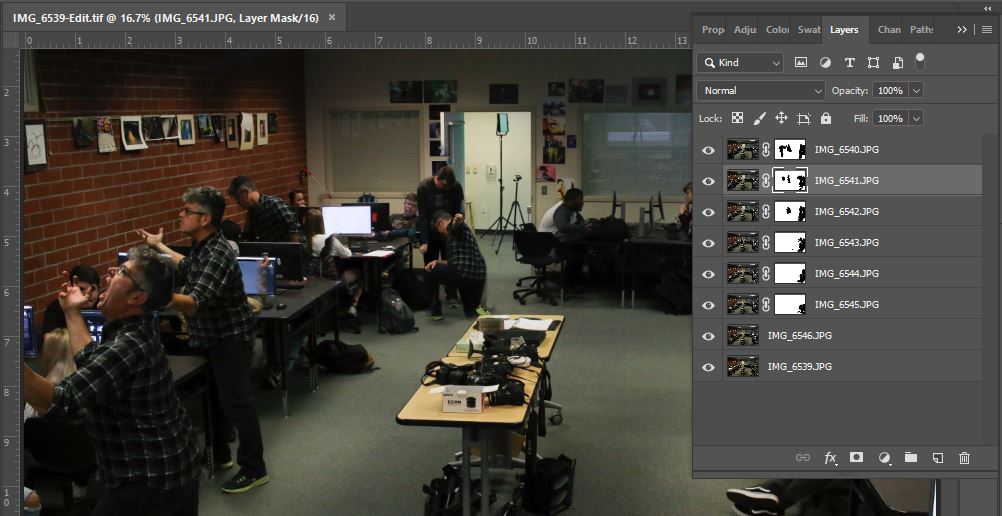
For the next photo challenge, you will take a photo with multiple versions of a person with the same background. You will use layer masks to make that happen.

These are all of the layer masks in my cloning image.

Step 1: Take five photos of one person in different positions. Use a tripod.
Step 2: With the camera still on the tripod, take a clean shot of the background with no people in it.
Step 3: Load all pictures into Lightroo.
Step 4: Select all photos in Lightroom by clicking CTRL while clicking on each picture.
Step 5: Right Click and Choose Open As Layers in Photoshop.
Step 6: Use layer masks to remove the backrounds.

What I’ll be grading you on:

How clean your layer masks are.
How creative your stage is.
Images are clear and in focus.
How well you edit the photo AFTER you create the clone effect in Photoshop.

One Clone Image is due on 11/5

To Do List for 10/25

Learning Target:

  • I can take two images for levitation.
  • One with my subject on a table, stool, or chair.
  • One with an empty background, no person, no chair. Same angle.
  • Use a tripod.

Steps:

1. Shoot two photos for the new Photo Challenge: Levitation.

2. Take both images into Lightroom, select them both and choose Edit As Layers in Photoshop. Erase the evidence of the table, chair, or stool.

Monday

Clean up the edit, make it look clean and professional.

Design a site like this with WordPress.com
Get started