Today’s Activity: Shoot & Edit Three Photos

For today’s Activity you will do the following:

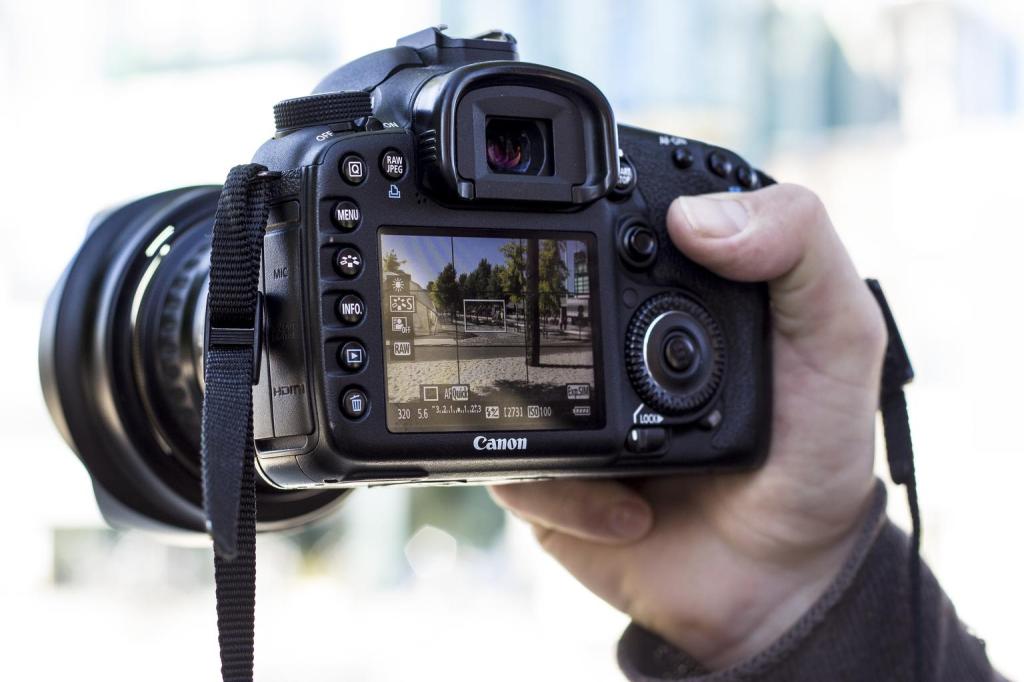
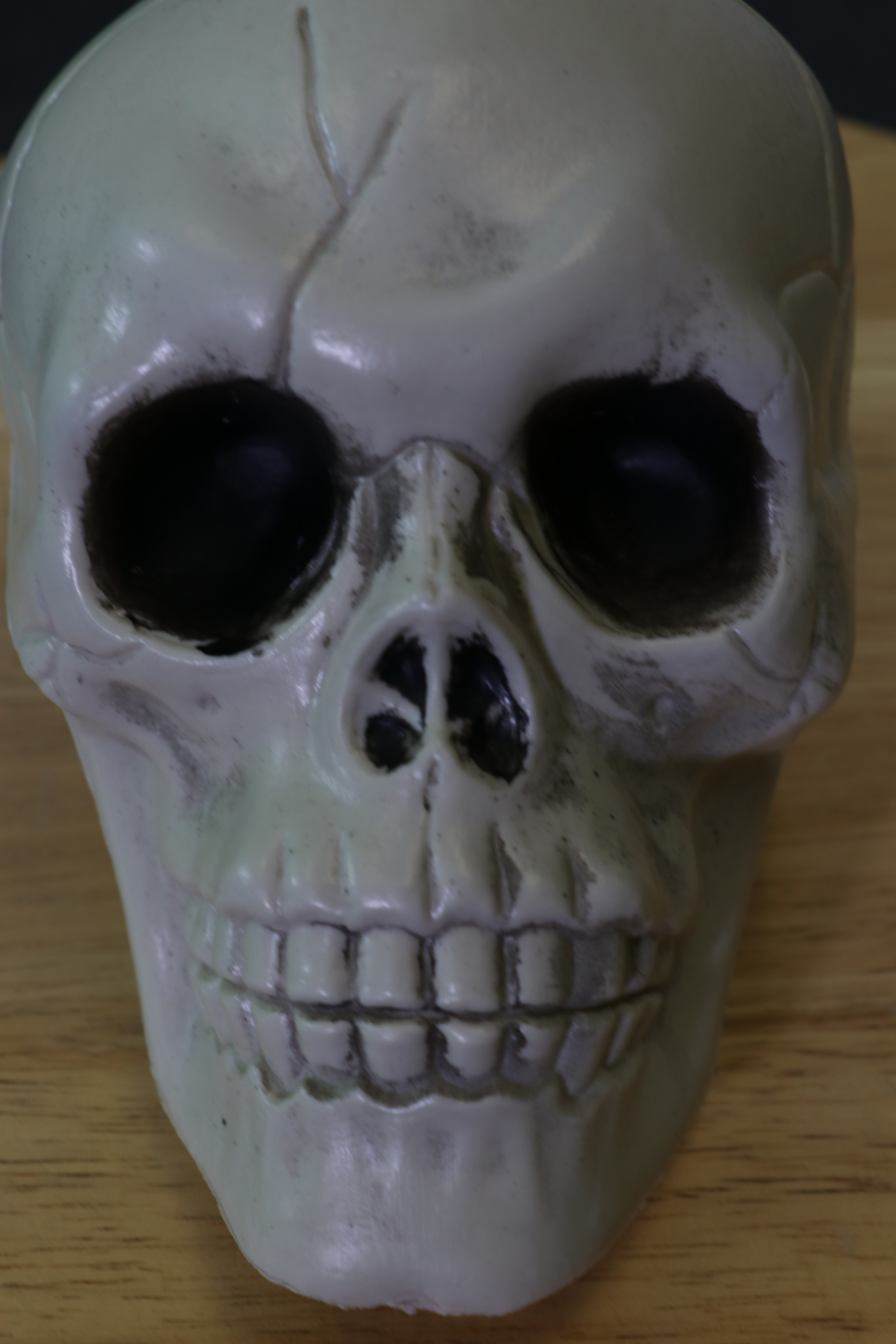
In groups of 2-3 students, each person will shoot 3 pictures of the same subject from three different camera angles.

We will then load the images into your computers from the memory cards.

  1. Grab a memory card and a camera for your group.
  2. Sign out the camera in the sign out book.
  3. Sign out the card in the sign out book.
  4. Fill out a square pass out for 10 minutes.
  5. Take 3 Pics of the same subject.
  6. Come back.
  7. Grab a card reader from my desk in the glass mason jar.
  8. Put the memory card into the card reader.
  9. Put the card reader into your computer.
  10. Go to This PC
  11. Look for EOS
  12. 100 Canon.
  13. Choose the highest number canon folder if there is more than one.
  14. Look at the time and date stamp.
  15. Select all of your photos.
  16. Copy the photos.
  17. Paste them into your UserStorage F: Drive folder.
  18. Upload the photos to Google Drive.
  19. Repeat steps for each group member.

We will load these images into Adobe Lightroom.

To Do List for 9/5

Learning Target:

  • I understand the requirements for the Decisive Moment photo challenge.
  • I can create a new catalog for Lightroom.
  • I know how to import photos into Lightroom.
  • I know how to perform basic edits in Lightroom.
Steps:

1. Strong goes over creating a new catalog in Lightroom.
2. Strong goes over performing basic edits using Adobe Lightroom.
3. Strong goes over the first Photo Challenge, The Decisive Moment.

Next Step:
Make photos for the Decisive Moment Photo Challenge.

Today’s Activity: Setting Up Computers & Lightroom

For today’s activity we will be setting up our computer to work with Adobe Photoshop and Adobe Lightroom. By the end of the period you will have a set up where you will be able to edit each photo you take.

REMEMBER: You will need to repeat this step EACH TIME YOU MOVE SEATS.

Step 1: Create Folders on Your Computer.

Step 2: Go to the F: Drive of your computer. Right click on the white space and create a folder called “Catalog.” This is where we will be creating our catalog to use in Adobe Lightroom.

Step 3: Open up Adobe Lightroom on your computer by going to the windows sign and choosing Adobe Lightroom from the list or type in “Light” into Cortana at the bottom left of your screen.

You will get an error message that says it cannot create a catalog. Click “Create new Catalog.”

Browse to the Catalog folder under your name on the F: Drive. Type the name “Catalog” into the Name field and click create.

This will create our catalog file.

DO NOT MOVE YOUR CATALOG FILE OR ALL OF YOUR PHOTOS WILL APPEAR TO BE DELETED.

Lightroom will now open.

Step 5: Strong goes over importing and editing photos. Import one of your favorite photos from the alphabet project.

Photo Challenge 1: Decisive Moment

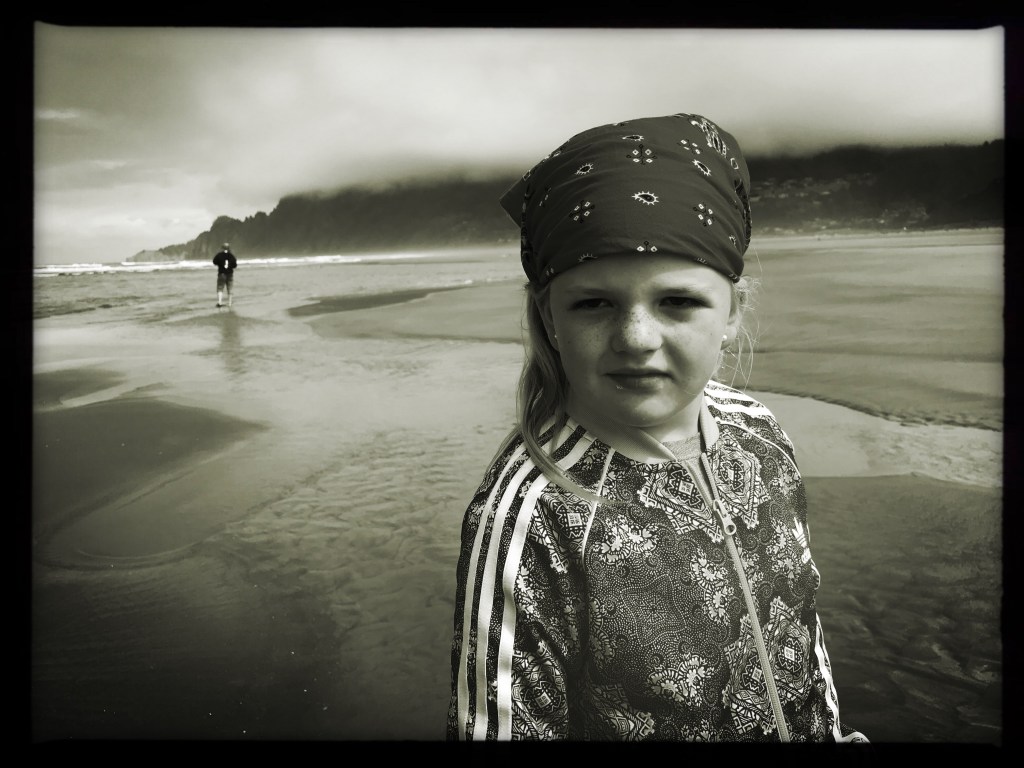
Both of these images were shot this summer on my cellphone, using an app called Hipstamatic. Both were shots I didn’t plan out. I knew that they would make good subjects for pictures. And I definitely had to wait for the right moment, but it wasn’t that easy. I took several shots of each subject. I chose the one that had the strongest emotional impact on me. For both images I used the rule of thirds composition technique and both images have relationships between the foreground and the background.

The small moments captured in the photos above represent just one snapshot of time frozen with a picture. That’s what a picture can do, perfectly capture a moment. There is theater alround us at all time. It only takes an observant person to notice these moments.

If you don’t have access to younger siblings or cousins, or what not. Try the clouds, try a pet. Try the way the light hits the side of a house, or an open window on a summer afternoon. There are decisive moments both small and large happening all the time. All it takes is an observant person to capture them.

Step 1:

Shoot around 10 photos of various subjects.

Step 2:

Bring in the photos to class.

Step 3: Load the images into Lightroom.

Step 4: Edit the photos to enhance the decisive moment factor of your photos.

Step 5: Rate the photos from one to five stars.

Step 6: Upload the top three images to your visual journal.

Turn in these three into Google Classroom as .jpegs.

Photos are due on Tuesday, 9/10

To Do List for 9/4

Learning Target:

  • I understand what Bresson meant by the Decisive Moment
  • I have my Alphabet Project Turned in.
  • I can, with my group, learn the basic parts of our Canon DSLR cameras.
Steps:

1. Read the post on the Decisive Moment.
2. Write a post on your visual journal about this concept.
   - The website you made last week. 
3. With your table mates, work on the DSLR Scavenger Hunt
   - Read the manual as a group and answer the questions.
   - Turn in answers to Google Classroom. 
   - Each person turns in their group's answers.
4. We will compete in a Kahoot Gameshow on this.

Next Step:
Google Quiz on these concepts.

To Do List for 9/3

Learning Target:

  • I know Bresson means by the “Decisive Moment” and why its important in photography.
  • I can reflect on the Decisive Moment and Bresson’s photo in my visual journal.
  • I understand the different parts of the camera my group was assigned to.
Steps:

1. Read the post on the Decisive Moment.
2. Write a post on your visual journal about this concept.
   - The website you made last week. 
3. With your table mates, work on the DSLR Scavenger Hunt
   - Read the manual as a group and answer the questions.
   - Turn in answers to Google Classroom. 
   - Each person turns in their group's answers.

Next Step:
Kahoot & Google Quiz on these concepts.

Today’s Activity: DSLR Scavenger Hunt

For Today’s Activity. You will be assigned a camera for your group to use.

Step 1: Find out what model of camera you have. Pull up the correct manual and make sure you are all on the same page.

Canon 80D

https://www.usa.canon.com/internet/portal/us/home/support/details/cameras/eos-dslr-and-mirrorless-cameras/dslr/eos-80d?tab=manuals

Canon 60D

https://www.usa.canon.com/internet/portal/us/home/support/details/cameras/eos-dslr-and-mirrorless-cameras/dslr/eos-60d?tab=manuals

Canon T5i

Click to access eos-rebelt5i-700d-im2-en.pdf

Step 2:

Be prepared to answer the following questions. You will answer them as a group.

  • What model of camera do you have?
  • How do you turn the camera on?
  • How do you take a picture?
  • Where does the Tripod plug in?
  • Where is the focus ring on your camera?
  • What does MF and AF stand for?
  • What does the AV, TV, and M settings on the camera mean?
  • What button can you press on the camera to see the settings?
  • How can you shoot video?
  • Where does the memory card go?
  • How can you set the self timer?
  • What two controls can you use to get focus?
  • How is getting focus different in these two modes?
  • How do you wipe a card?
  • How do you name the files?
  • What is aperture and how do you change it on this camera?
  • What is shutter speed and how do you change it on this camera?
  • What is white balance and how do you change it on this camera?
  • What is ISO and how do you change it on this camera?

Find the answers to these questions before the end of the period. Record your answers and share them with your team members on your Visual Journals. Each person will post the answers to these questions on their visual journals.

Next Step:

We will have a Kahoot quiz game on this and we will take a Google Quiz.

Warm Up: The Decisive Moment

“Your first 1,000 photographs are your worst.”

– Henri Cartier-Bresson

Gare Saint-Lazare

Gare Saint-Lazare (Photo by Henri Cartier-Bresson)

Click on the Gare-Saint Lazare link above to learn about this famous photograph.

VISUAL JOURNAL REFLECTION –

Where does the term “Decisive Moment” come from? What does it mean? Post a one paragraph response to your visual journal.

To Do List for 8/30

Learning Target:

  • I know how to turn in the photos for the Alphabet Project.
  • I know how to create a Portfolio Website in Adobe Spark.
  • I understand the expectations for this class.
Steps:

1. Take Quiz on Classroom Expectations located in Google Classroom 
2. Finish work on the Alphabet Project 
3. Upload photos to the two folders in Google Classroom.
4. Sign into Adobe Spark in Classlink. 
   - Scroll Down and click the blue "Create a web page button"
   - Put in the name of your photo studio. Your brand. 
   - School Appropriate please.
   - Come up with a sub heading, the kind of content you make, 
   - The type of photography your business will produce. 
Design a site like this with WordPress.com
Get started