
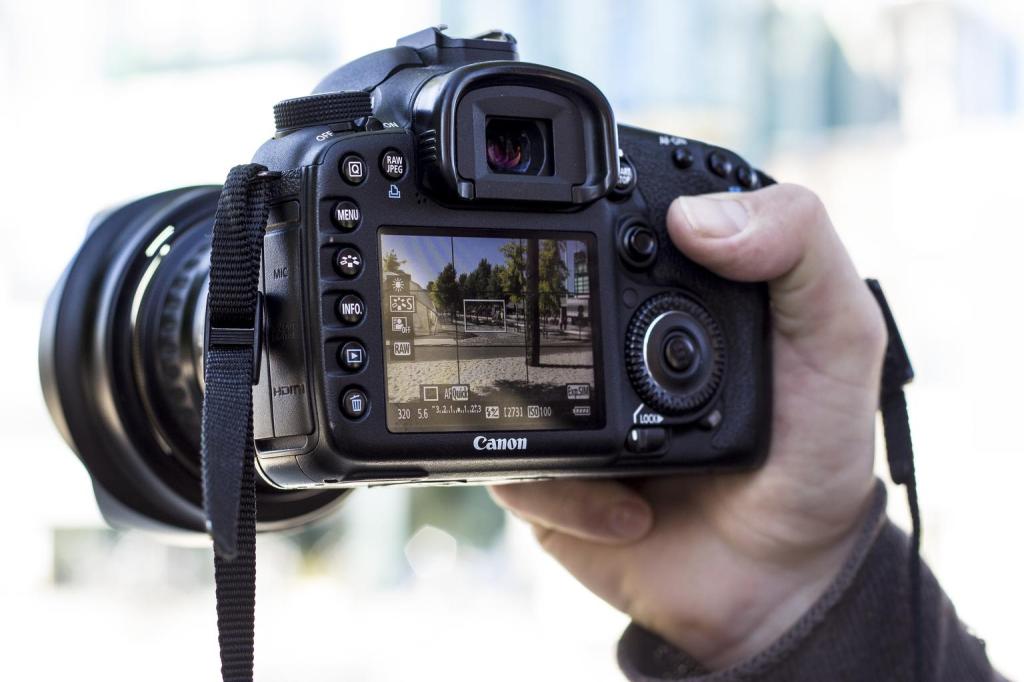
Today’s Activity: DSLR Scavenger Hunt

For Today’s Activity. You will be assigned a camera for your group to use.

Step 1: Find out what model of camera you have. Pull up the correct manual and make sure you are all on the same page.

Canon 80D

https://www.usa.canon.com/internet/portal/us/home/support/details/cameras/eos-dslr-and-mirrorless-cameras/dslr/eos-80d?tab=manuals

Canon 60D

https://www.usa.canon.com/internet/portal/us/home/support/details/cameras/eos-dslr-and-mirrorless-cameras/dslr/eos-60d?tab=manuals

Canon T5i

Click to access eos-rebelt5i-700d-im2-en.pdf

Step 2:

Be prepared to answer the following questions. You will answer them as a group.

  • What model of camera do you have?
  • How do you turn the camera on?
  • How do you take a picture?
  • Where does the Tripod plug in?
  • Where is the focus ring on your camera?
  • What does MF and AF stand for?
  • What does the AV, TV, and M settings on the camera mean?
  • What button can you press on the camera to see the settings?
  • How can you shoot video?
  • Where does the memory card go?
  • How can you set the self timer?
  • What two controls can you use to get focus?
  • How is getting focus different in these two modes?
  • How do you wipe a card?
  • How do you name the files?
  • What is aperture and how do you change it on this camera?
  • What is shutter speed and how do you change it on this camera?
  • What is white balance and how do you change it on this camera?
  • What is ISO and how do you change it on this camera?

Find the answers to these questions before the end of the period. Record your answers and share them with your team members on your Visual Journals. Each person will post the answers to these questions on their visual journals.

Next Step:

We will have a Kahoot quiz game on this and we will take a Google Quiz.

Warm Up: The Decisive Moment

“Your first 1,000 photographs are your worst.”

– Henri Cartier-Bresson

Gare Saint-Lazare

Gare Saint-Lazare (Photo by Henri Cartier-Bresson)

Click on the Gare-Saint Lazare link above to learn about this famous photograph.

VISUAL JOURNAL REFLECTION –

Where does the term “Decisive Moment” come from? What does it mean? Post a one paragraph response to your visual journal.

To Do List for 8/30

Learning Target:

  • I know how to turn in the photos for the Alphabet Project.
  • I know how to create a Portfolio Website in Adobe Spark.
  • I understand the expectations for this class.
Steps:

1. Take Quiz on Classroom Expectations located in Google Classroom 
2. Finish work on the Alphabet Project 
3. Upload photos to the two folders in Google Classroom.
4. Sign into Adobe Spark in Classlink. 
   - Scroll Down and click the blue "Create a web page button"
   - Put in the name of your photo studio. Your brand. 
   - School Appropriate please.
   - Come up with a sub heading, the kind of content you make, 
   - The type of photography your business will produce. 

Today’s Activity: Sending Out the Message: Syllabus

For today’s activity, we will be looking at the Syllabus for this class, dividing this document into multiple sections. Strong will assign each table group to a section, the table groups will read over the section and elect one person from their table to share out what is covered in their syllabus section.

At the end of class we will have a quick quiz on what was covered.

Step 1:

Look over your section, read over the words, discuss what is in them and clarify any confusing terms or language as a group.

Create a summary statement that concisely covers what is in that section. Add or change that summary statement according to what each person feels is in that section.

Step 2:

Select a person from your group to share out. This can also be done in pairs. The person will share that summary statement out with the class.

Step 3: After 20 minutes is up, Each group will share out.

Step 4: Complete the Quiz in Google Classroom.

Today’s Activity: Create Folders on your Computer

The computer you are sitting at will be the computer you sit at for the next month or so. Each time you move computers you will need to complete these steps.

  1. Go to yellow folder icon at the bottom of your computer.

The folder icon on the right.

2. Go To: This PC

3. Double Click on the Storage F: Icon.

4. Right click with your mouse and select ‘new /folder’

5. Create a new folder with your first name and Last Name in all caps.

6. No substitutions please.

7. Double click on the folder you just made and make another folder and call it “Assignments”.

8. Double click on the folder you just made and make another folder and call it “Alphabet”.

9. You will save all Alphabet related files to this folder.

10. You will then upload the photos you make for the Alphabet Project, to Google Drive.

11. You will do this for each project we make in this class.

12. A backup is important in case things get lost.

Strong’s Alphabet Example

Think of it as half an alphabet. This is what I was able to come up with with about one hour worth of picture taking and editing. What letters can you capture today?

Get to know you activity: Come up with a Group Name!

For the start of today. You will have fifteen minutes to come up with a group name. To do this, you will need to ask each other a series of questions that will allow us to get to know each other better. (highlight the text you don’t understand and right click to look that word or phrase up.)

Questions:

Imagine your best day ever, what would happen?

Left handed or right handed?

Meat or Veggie?

Glass half empty or glass half full?

Tech god or total luddite?

Play an instrument, which one?

Most inspirational celebrity or artist?

I love to paint and draw vs Photography is my only artistic outlet.

I know someone who had Mr. Strong as a teacher before. Vs. Who the heck is this gray haired guy?

Choose two more questions you come up with.

Finish it up!

Write the answers down on a sheet of paper and share your paper with your team members.

Based on what you have circled in common, come up with a team name.

  • Draw out a team name and logo
  • It can look like this:

Take a picture of your logo with your phone.

Next Step: Start on the Alphabet Challenge!

Design a site like this with WordPress.com
Get started