
For our first online only photo challenge, we will be looking at the portrait mode of your phone’s camera.
The link above contains photos, examples and step by step instructions to use the portrait mode on the iPhone.
This link, https://www.makeuseof.com/tag/portrait-mode-android/, shows you how to use the portrait mode of the Android.
What’s unique about the portrait mode is that’s ability to show the depth of field in an image. We learned about Depth of Field when we learned about the exposure triangle back in October. We change depth of field on a DSLR by adjusting the aperture, or the FStop setting, the opening in the lens and how large or small it can be.
Your phone doesn’t have a mechanical aperture, but it does have a sensor like a camera, and that sensor can be manipulated to adjust the amount of focus The Portrait mode is a way of doing that.
Attached are some examples I shot during the last few weeks using the portrait mode.

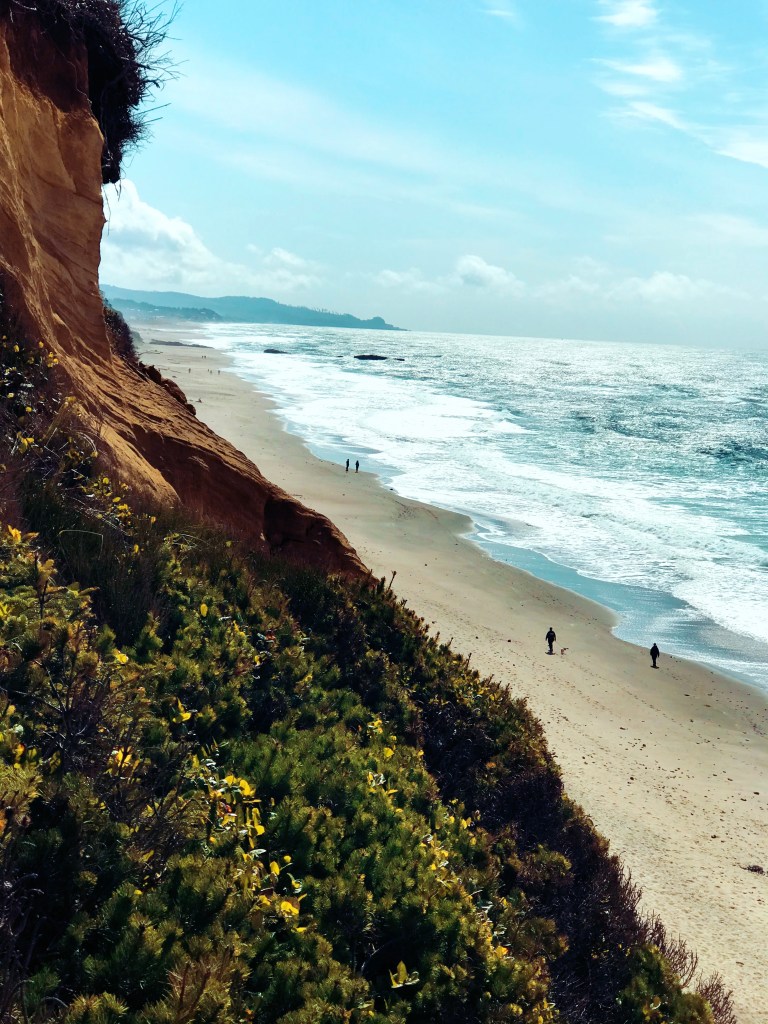


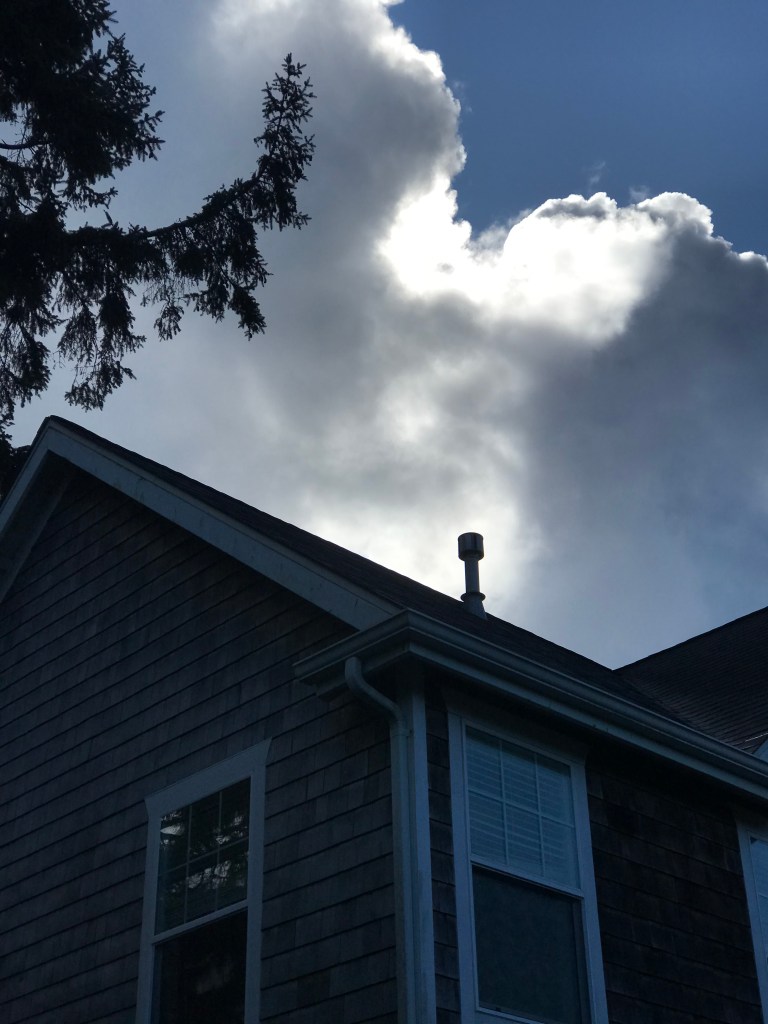
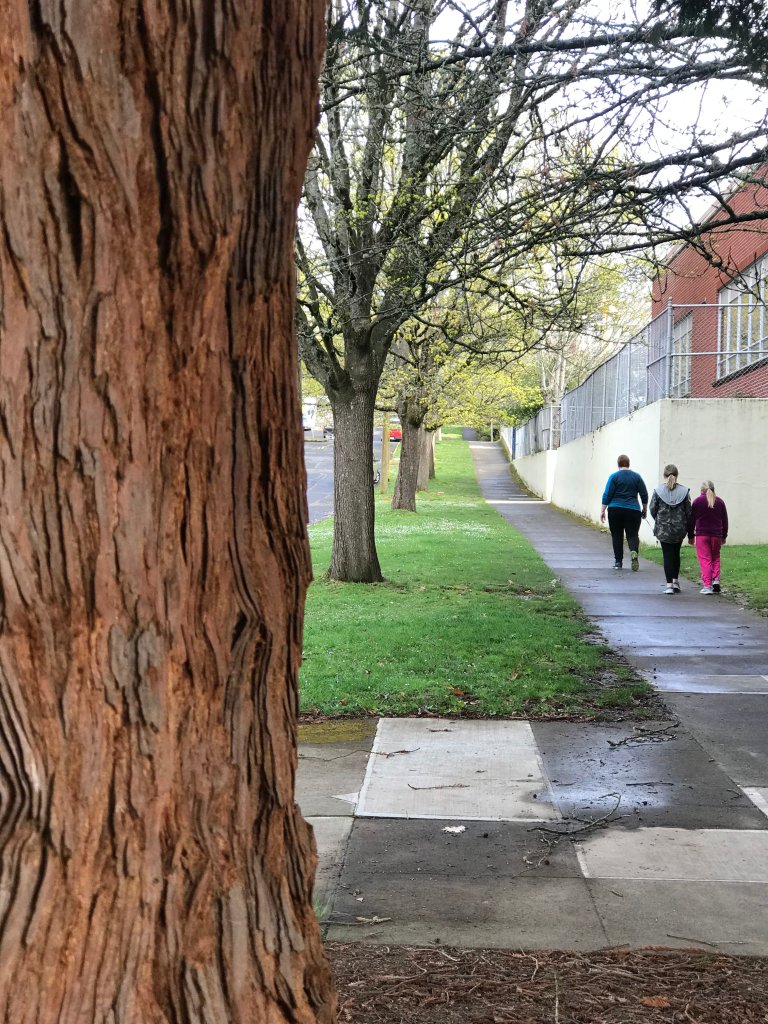
Make two photos that use the portrait mode and turn them in as jpgs to this post.
Tips:
Choose a subject with a lot of depth, go for a walk, practice the six feet away from people rule. Find a street corner, the side of your house, a tree with a road behind it. Think about how you are going to frame your subject. What happens when you click on the subject, what part of the image is in focus. What happens when you click on the background, what part of the image is in focus?
Two different subjects, two different pictures.
If you have a computer at home, you can download photoshop once you log into adobe.com with your school email and password.
Same with Lightroom.
If you don’t have access to a computer, and are using your chromebook, you can use the following apps to edit photos.
Photopea – https://www.photopea.com/
BeFunky – https://www.befunky.com/
Pixlr – https://pixlr.com/ – My fave!
PicMonkey – https://www.picmonkey.com/photo-editor
Fotor – https://www.fotor.com/
Always choose the free versions of these software, don’t spend any money.
Make a folder on your computer to save the photos. If you are using a chromebook, make a folder on Google drive to save your work.
Post your five photos to this post:
Label them: LastName_Portait_1.jpg & LastName_Portait_2.jpg
I will post all the photos and we will vote, just like a normal photo challenge.
Can’t wait to see what you got.
Due on Friday, April 11th.
 Strong Photography 19-20